

IT Department · School Wi-Fi
Getting your Android phone or tablet onto MHS-SECURE
For pupils and staff — the steps are the same for both. It takes about 20 minutes and you only ever do it once. Android varies between makes, so menu names may differ slightly; the pictures were taken on a real walk-through.
Check this first — it saves you a wasted trip
Open the Play Store. If your phone or tablet does not have the Play Store at all (some Huawei models sold after 2019 do not), stop here and bring it to IT. It can still get on the school Wi-Fi, but it has to be set up by hand at the service desk.
Before you start, you need
- Your school account. It is a short form of your name, not your full name — for example BusMkh@michaelhouse.org. Not sure? Ask IT before you start.
- A Google account signed in on the device, so you can install from the Play Store.
- A screen lock — PIN, pattern or fingerprint. Set it before you start: Settings → Security → Screen lock. A device with no screen lock is marked about a day later as not meeting the school's rules, and can lose school email and Teams.
- About 20 minutes and enough battery. A real walk-through took 14 minutes.
Part A
Join the onboarding Wi-Fi
- 1Open Settings → Network & internet → Internet (Samsung: Settings → Connections → Wi-Fi).
- 2Tap Michaelhouse. It is open — there is no password.
- 3No sign-in page will pop up, and it may say "no internet". Both are correct — nothing is broken. Carry on.
Part B
Install Company Portal
- 4Open the Play Store and install
Intune Company Portal (by Microsoft Corporation). Open it once installed.
Part C
Sign in and create your work profile
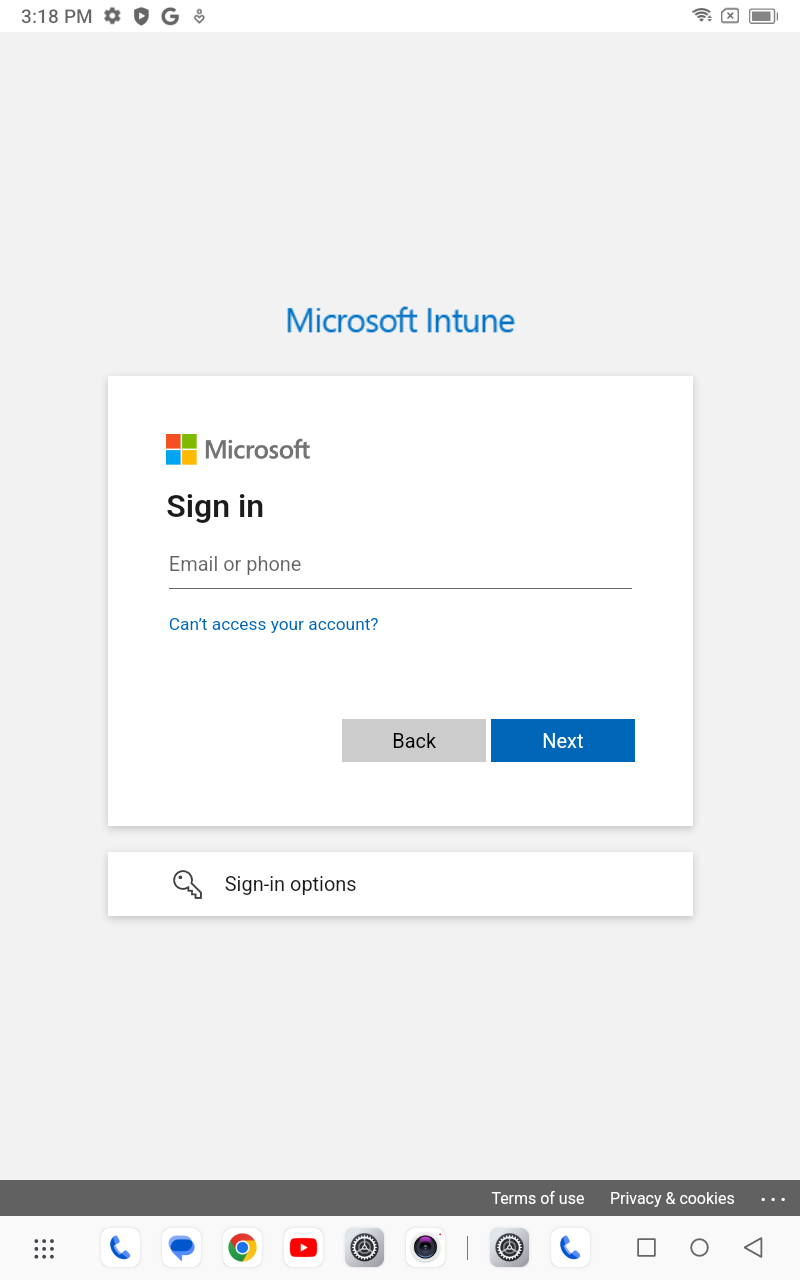
- 5Sign in with your school account.
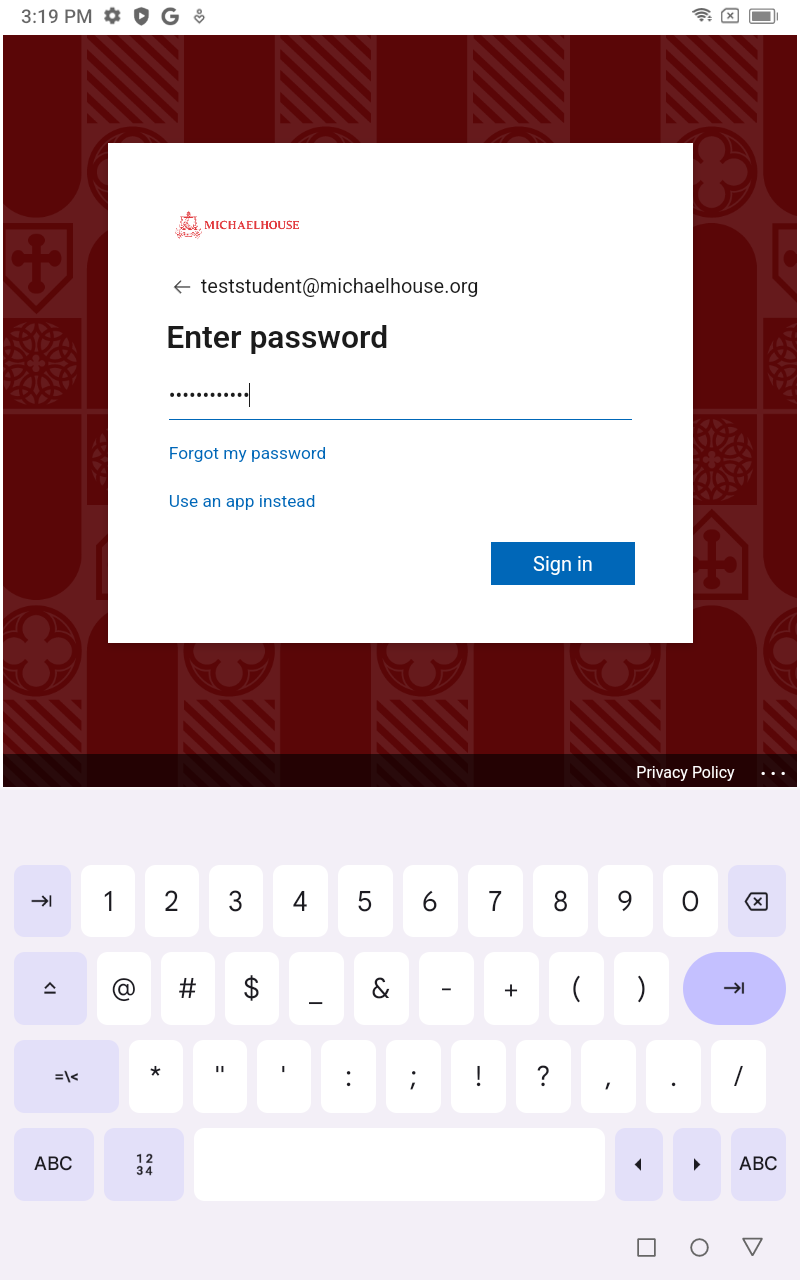
- 6Enter your school password on the Michaelhouse screen.
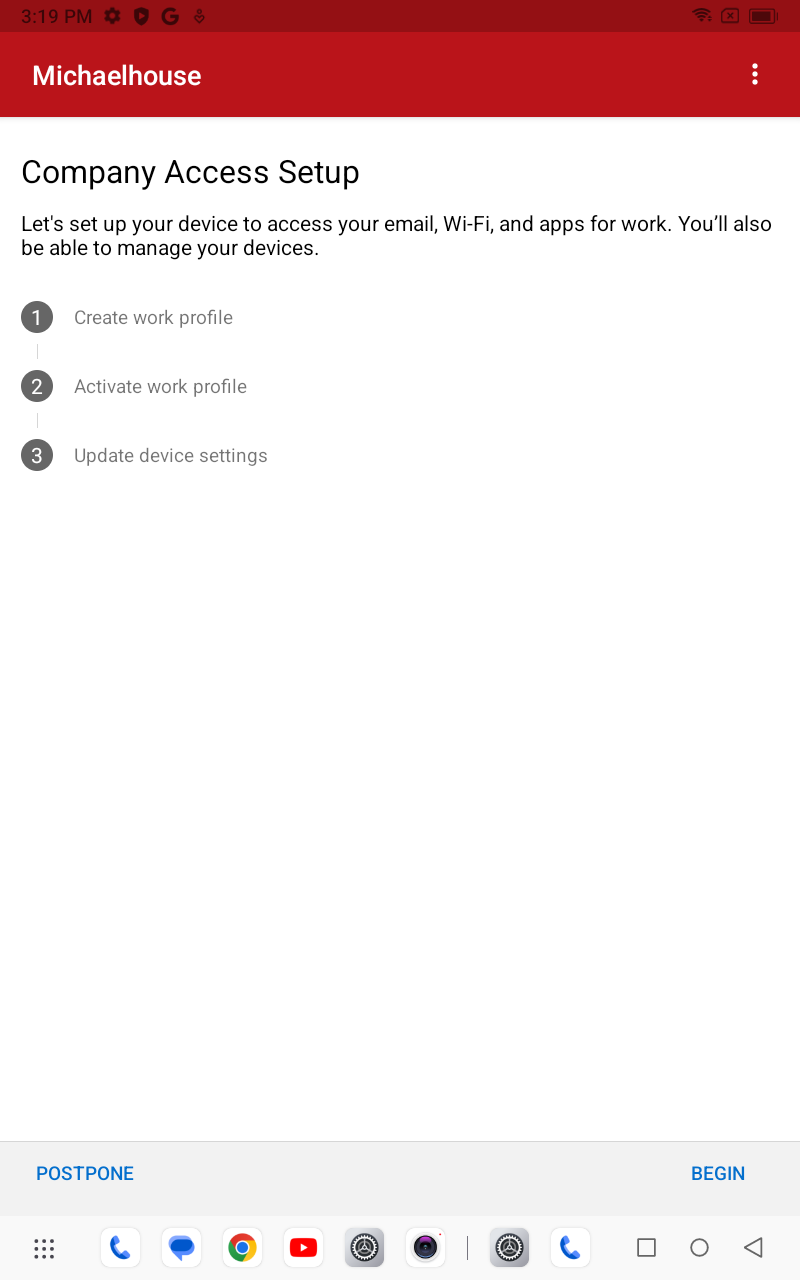
- 7On Company Access Setup, tap BEGIN. It lists the
three things it is about to do.
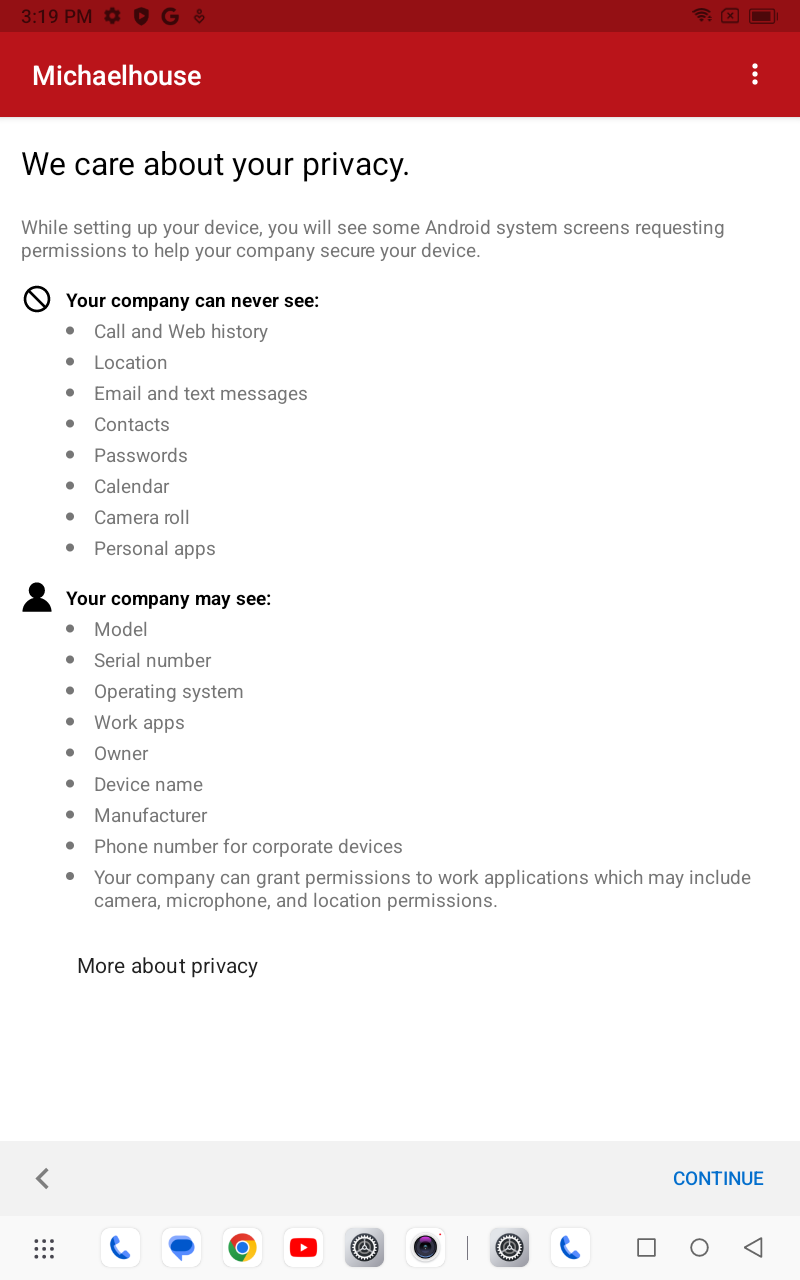
- 8Read the privacy screen and tap CONTINUE. It is worth
actually reading — it lists exactly what the school can and cannot see.
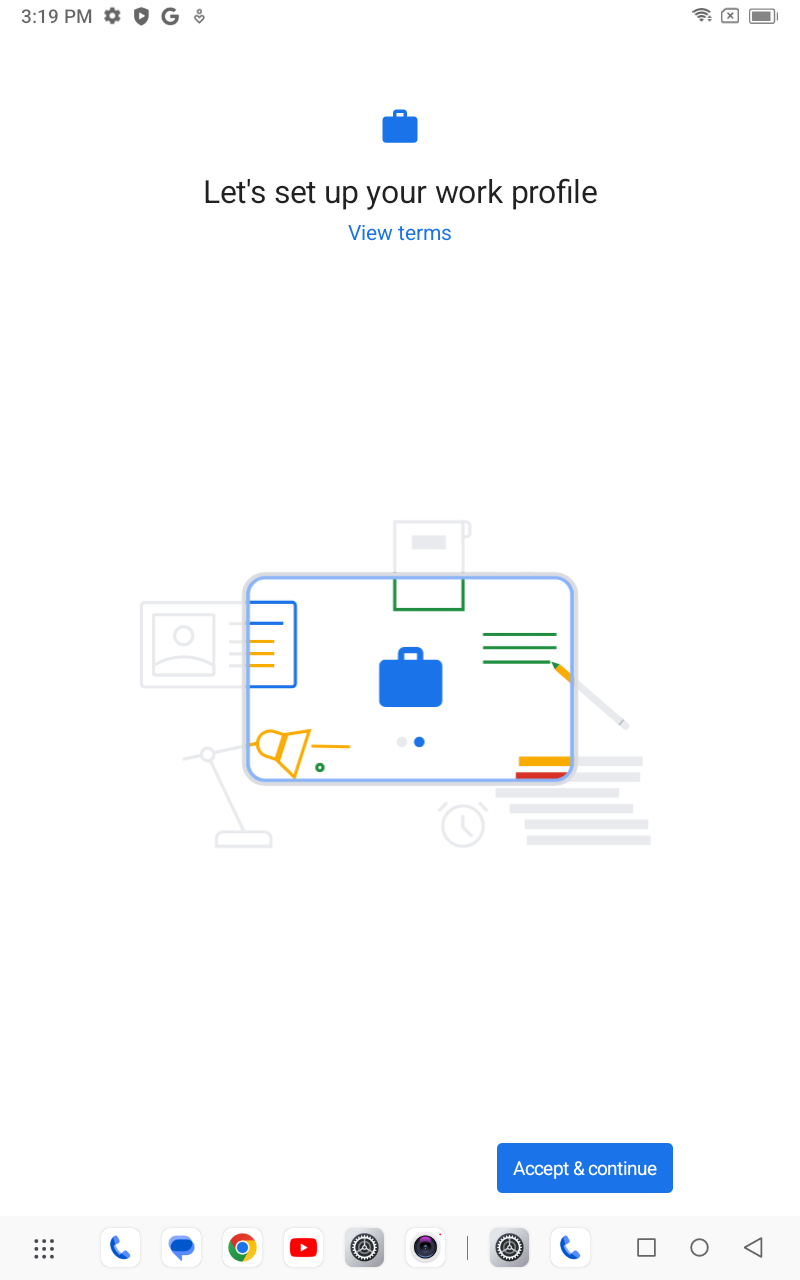
- 9Tap Accept & continue to create the work profile.
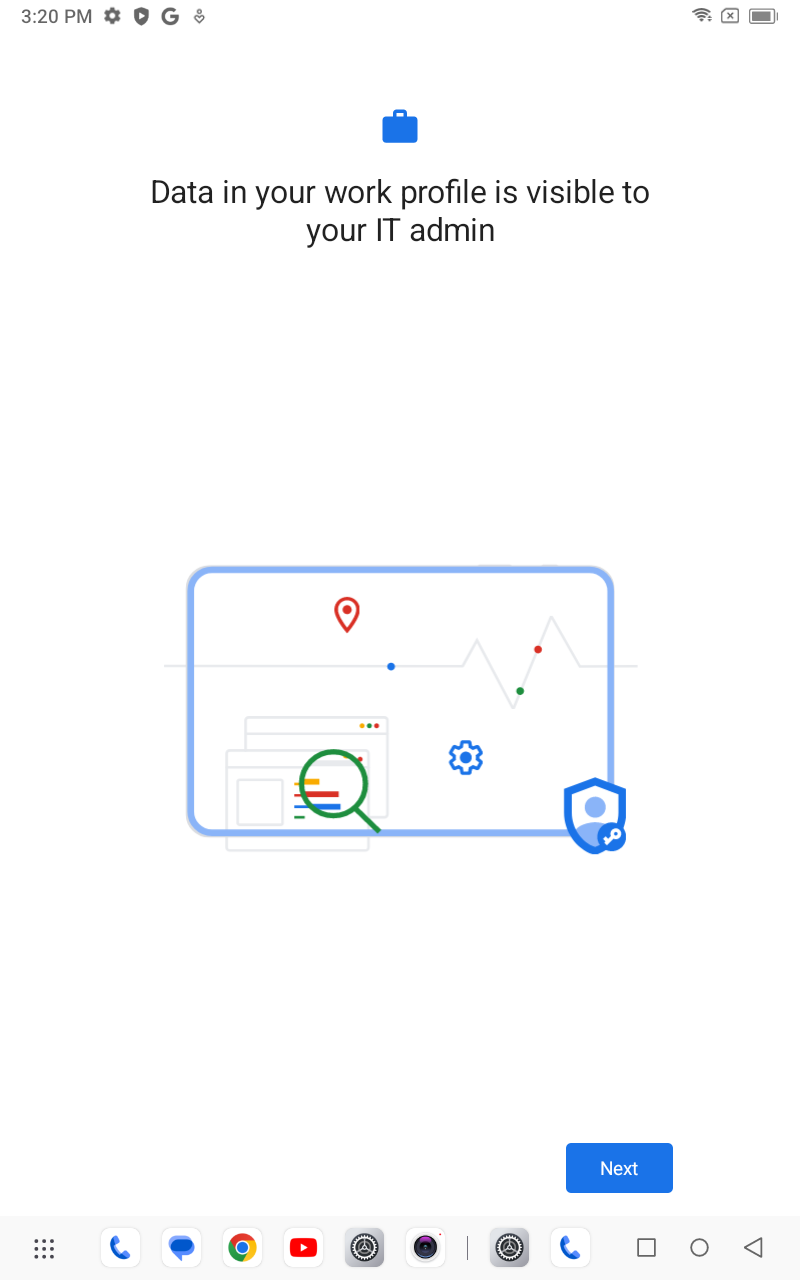
- 10Tap Next on the last screen and let it finish. Some apps
will reappear with a small briefcase badge — those are the work copies.
- 11Company Portal asks you to choose the best category for this device. Pupils choose Students; staff choose Staff. Tap Continue. Choose honestly — see the box below.
Step 11 — choose your category honestly
Pupils choose Students. Staff choose Staff. This one choice decides which school settings your device is given.
Device categories are audited and corrected every day, so choosing the wrong one gains you nothing — it will be put back automatically. Deliberately selecting a category that is not yours is a disciplinary matter.
Part D
Wait for MHS-SECURE to appear
- 12Stay on the school Wi-Fi. Do not switch to mobile data — the device has to reach the school's certificate server, and that only works on the school network.
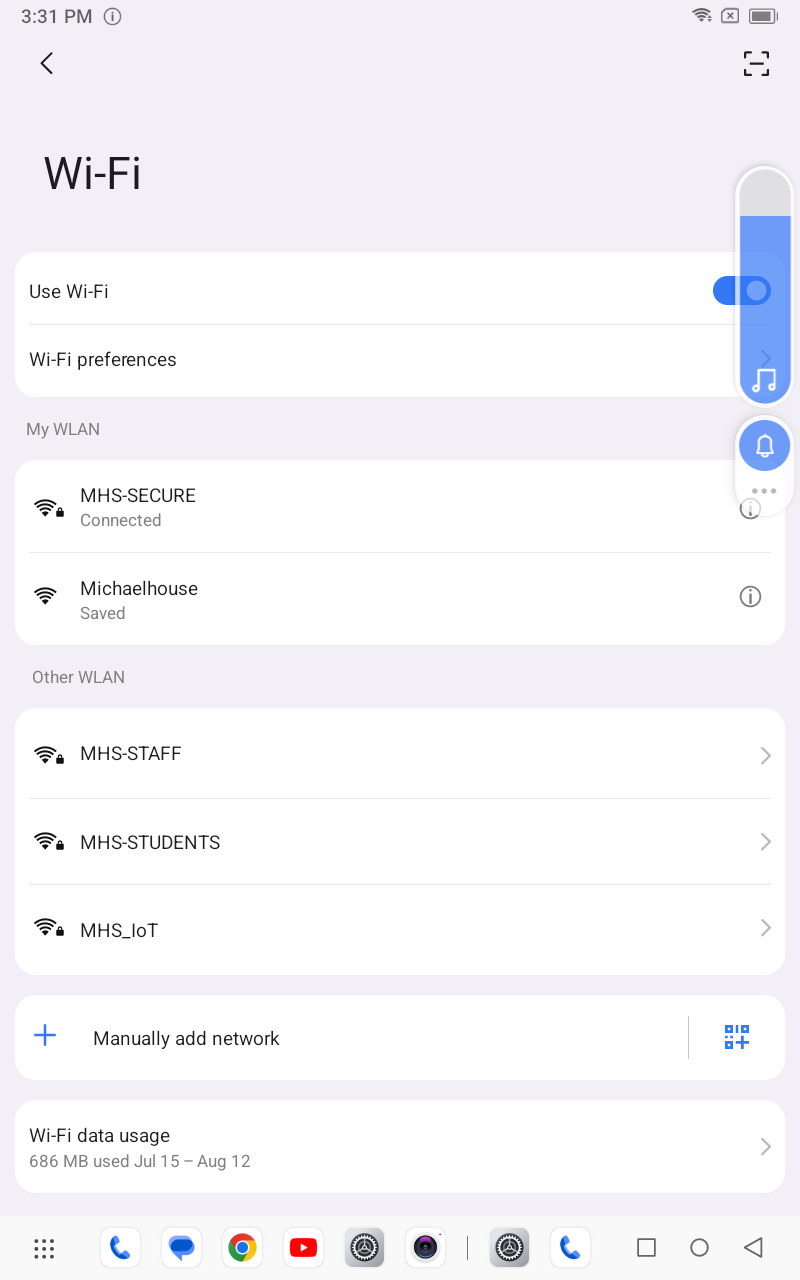
- 13Within about 15 minutes, MHS-SECURE appears and
connects on its own. You never type a password — your device is issued a certificate instead.
Part E
Finish up
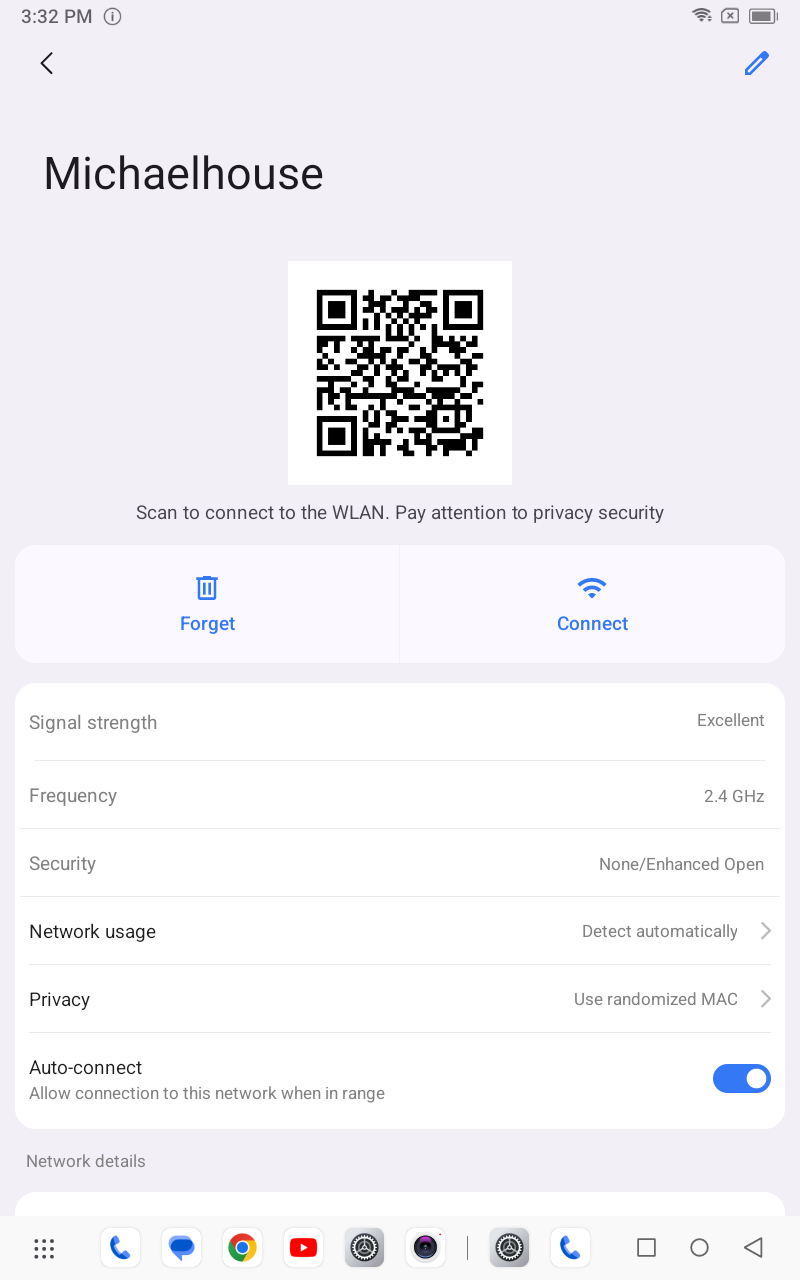
- 14Once MHS-SECURE is connected, forget the onboarding
network: tap Michaelhouse → Forget. Otherwise the device keeps drifting back
to it.
If something goes wrong
Common problems
No Play Store on the device
Bring it to IT. It has to be set up by hand — you cannot do this one yourself.
It says "no internet" while on Michaelhouse
Expected. That network deliberately reaches only the school and a few Google and Microsoft services. Carry on — and make sure the device does not jump to mobile data.
Apps have appeared twice, with a briefcase badge
Normal. The badged one is the work copy — use it for school email and Teams.
"Device not compliant"
Almost always no screen lock. Set a PIN or pattern, then Company Portal → Check settings.
MHS-SECURE never appears
Check you are still on school Wi-Fi and not mobile data, then Company Portal → Check settings. After 30 minutes → IT.
MHS-SECURE appears but will not join
Tell IT. Do not delete the work profile and start again — that usually makes it worse.
Device keeps going back to Michaelhouse
You did not forget the network — step 14.
Everything closed itself half-way
Left idle too long. Reopen Company Portal and start Part C again.
Getting help: tell IT which step number you reached and exactly what appeared on screen. That is the fastest route to a fix.