

IT Department · School Wi-Fi
Getting your iPad or iPhone onto MHS-SECURE
For pupils and staff — the steps are the same for both, apart from one choice at step 20. It takes about 20–30 minutes, and you only ever do it once. The steps are the same on an iPhone — the pictures just show an iPad.
Before you start, you need
- Your school account. It is a short form of your name, not your full name — for example BusMkh@michaelhouse.org for a pupil or VanOos@michaelhouse.org for staff. Not sure what yours is? Ask IT before you start.
- Your Apple ID, signed in on the device (Settings → Sign in to your iPad or iPhone). You need it to install apps.
- A passcode on the device. Settings → Face ID (or Touch ID) & Passcode → Turn Passcode On. Set it before you start — about a day later, a device with no passcode is marked as not meeting the school's rules, and may lose access to school email and Teams.
- About 20 minutes without stopping. If Company Portal is left idle for more than a few minutes it closes and you start again.
Part A
Join the onboarding Wi-Fi
- 1Open Settings → Wi-Fi.
- 2Tap Michaelhouse. It is open — there is no password.
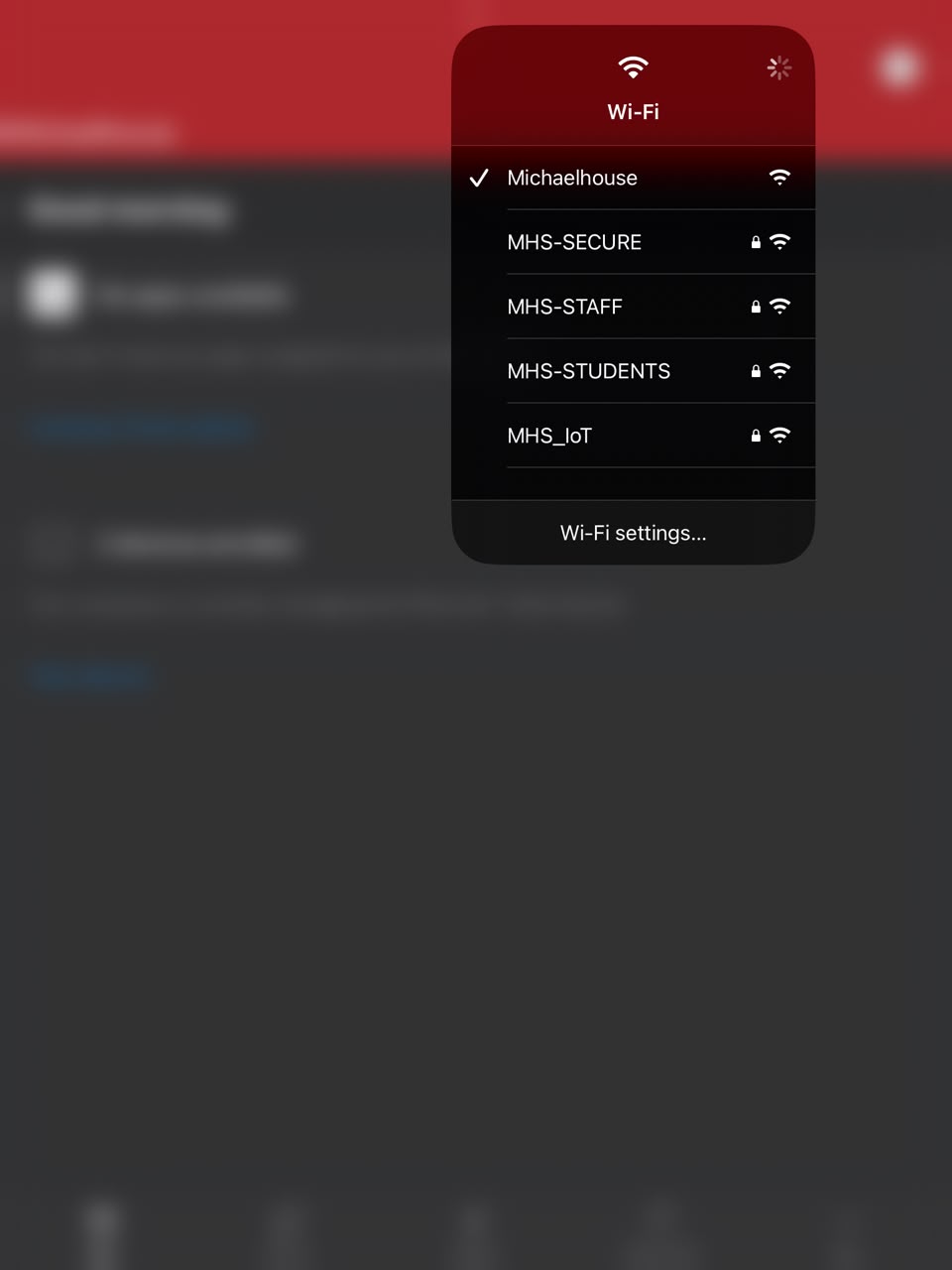
- 3Tap the ⓘ next to Michaelhouse and turn Private Wi-Fi Address OFF.
- 4No sign-in page will pop up. That is correct — nothing is broken. Carry on.
You now have a limited connection: Apple, Microsoft and school services only — no general internet. That is deliberate; it exists so you can get set up.
Part B
Install the two apps
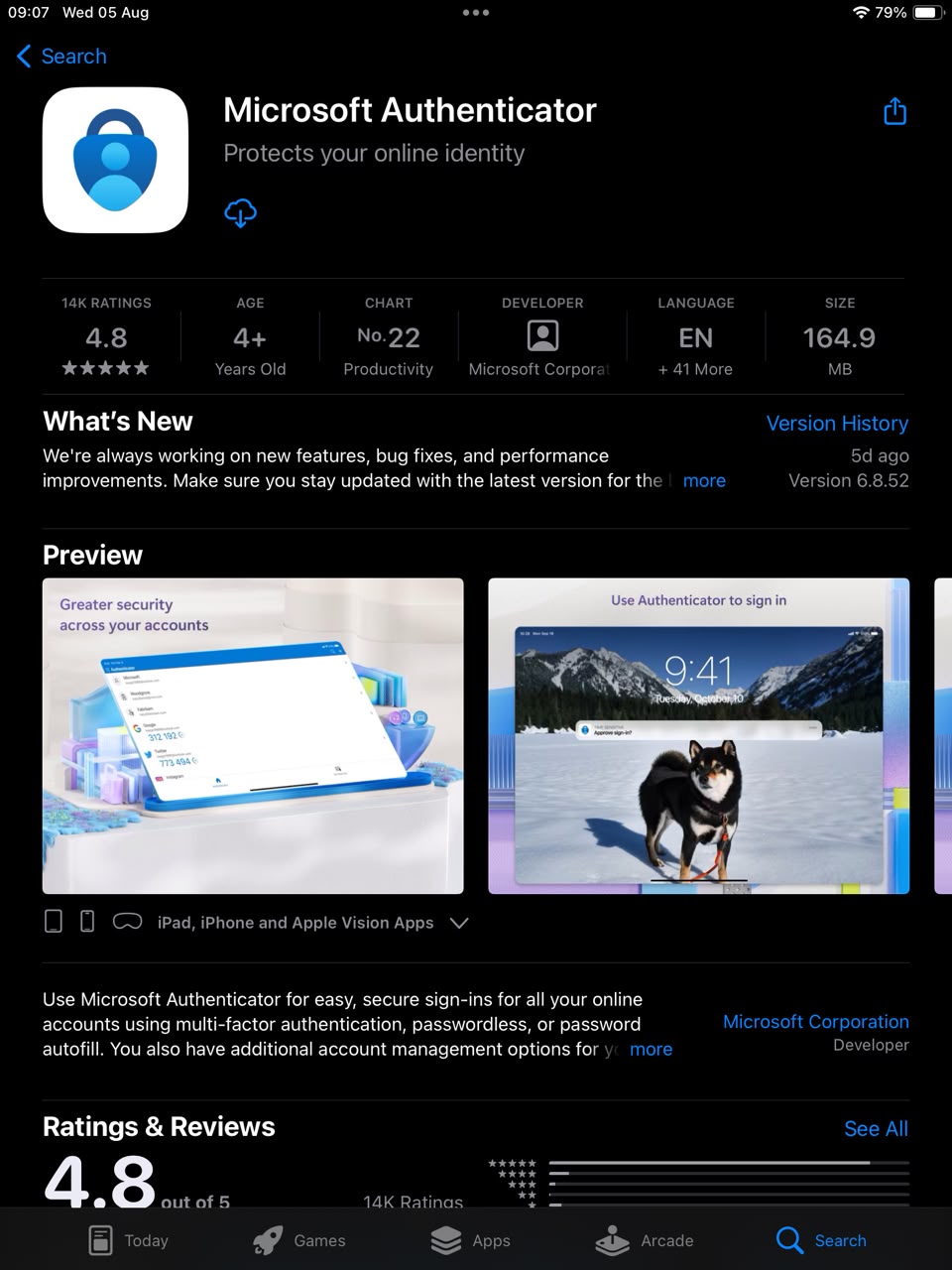
- 5Open the App Store and install
Microsoft Authenticator. Install it only — you do not need to open it or sign into it.
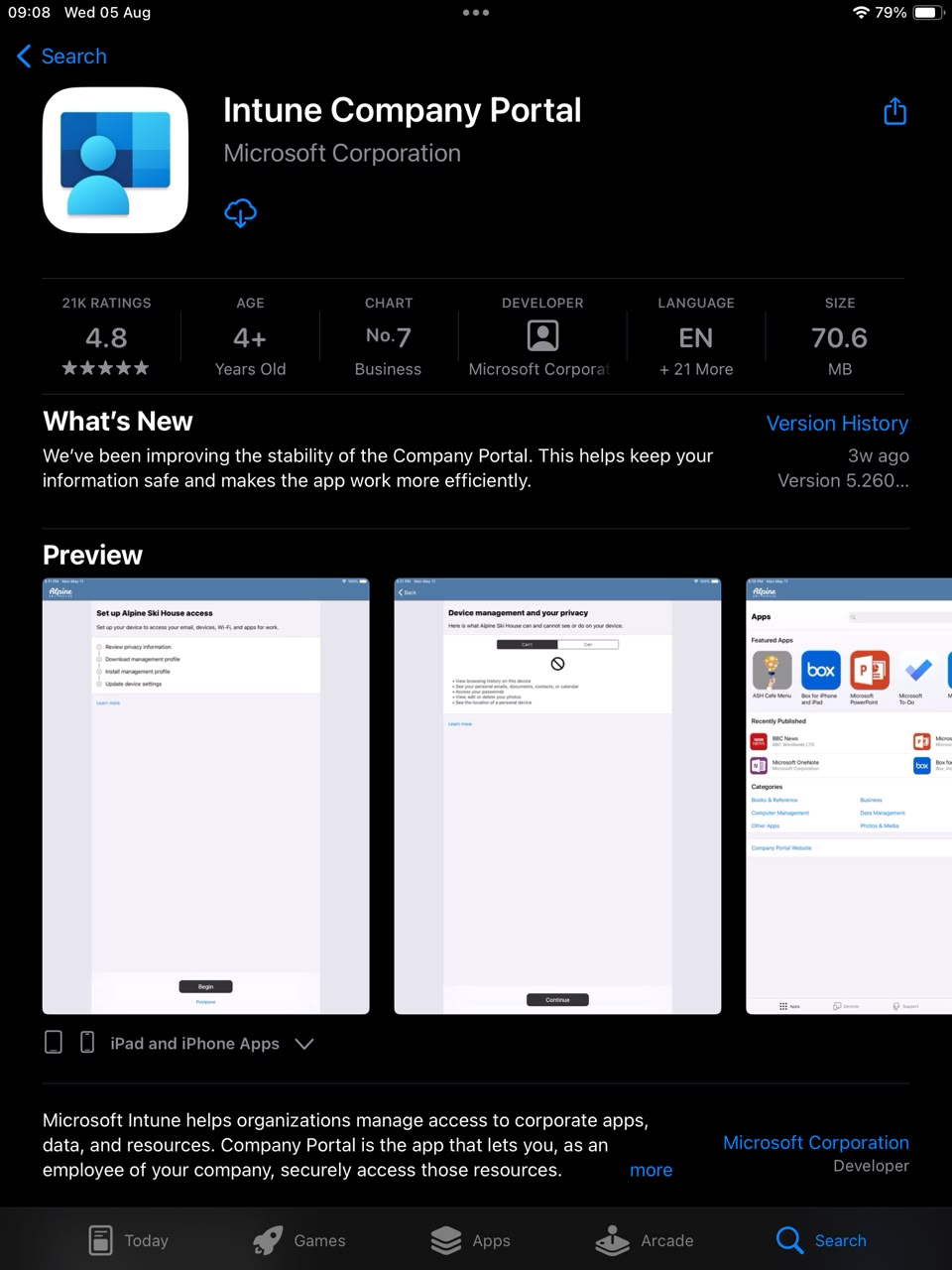
- 6Then install Intune Company Portal.
Part C
Sign in and enrol
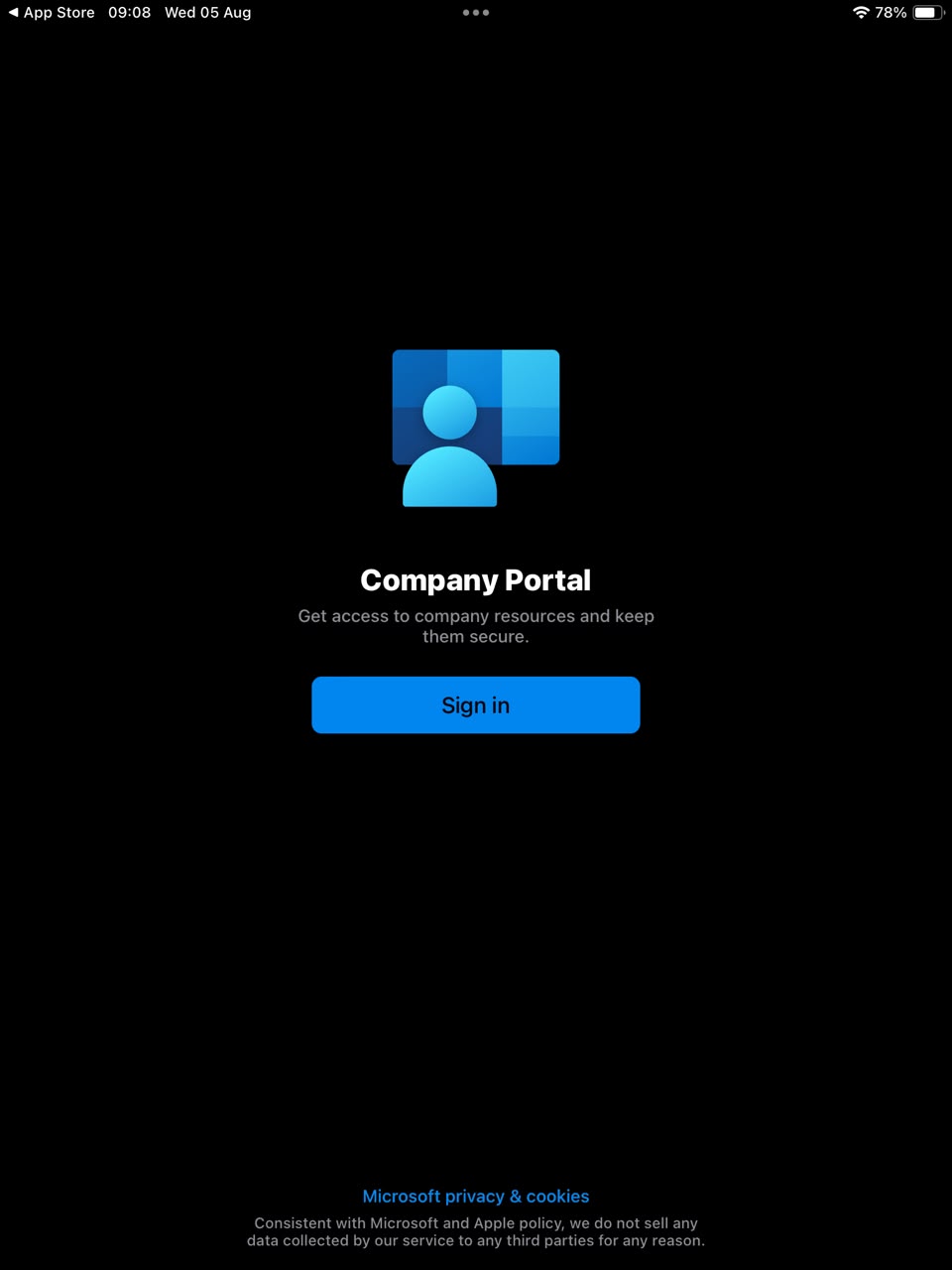
- 7Open Company Portal and sign in with your school account.
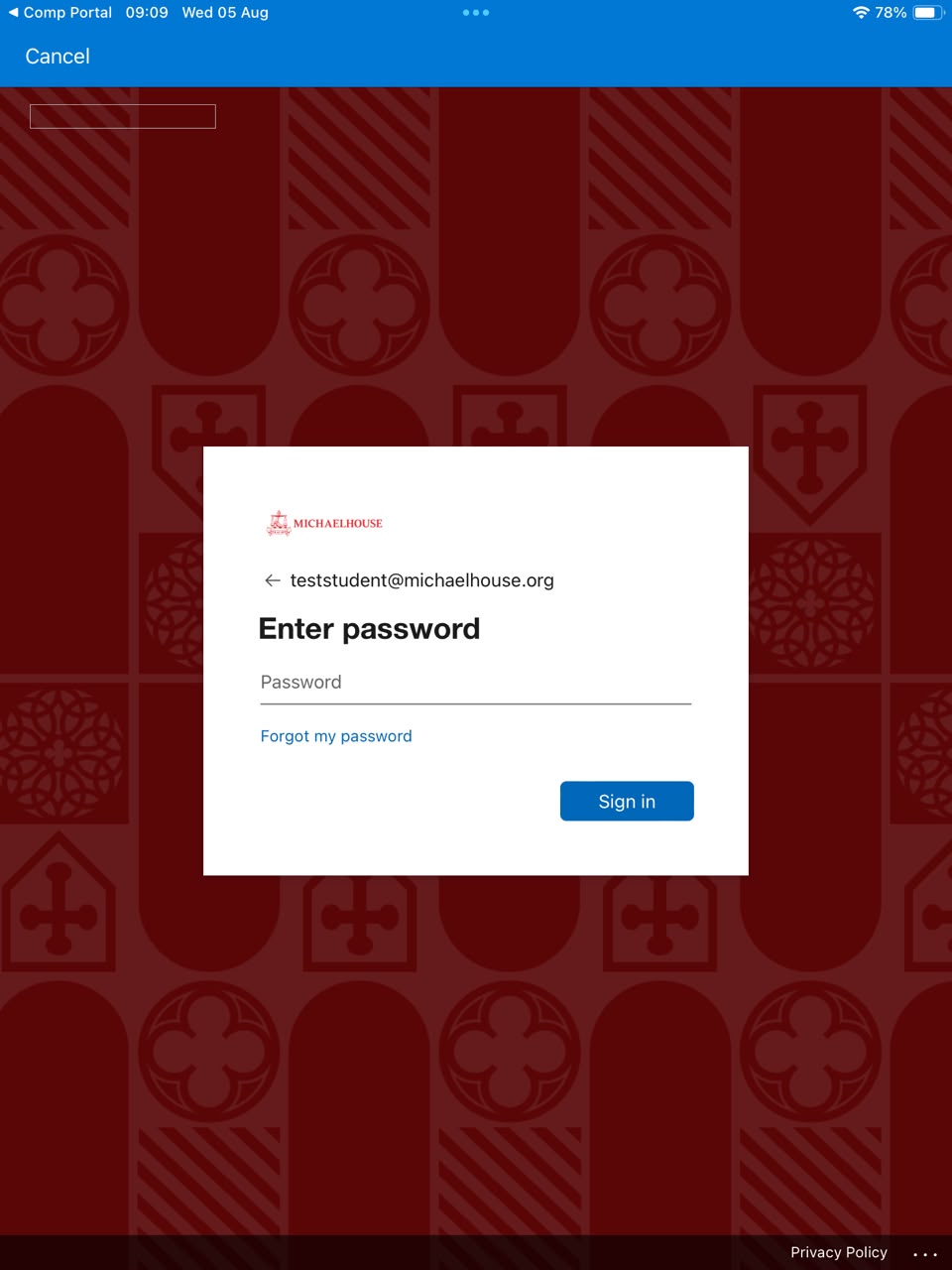
- 8Company Portal shows "Set up Michaelhouse access". Tap
Continue — it opens Safari. (You cannot skip the Safari process — tapping
Postpone here does not work; we tested.)
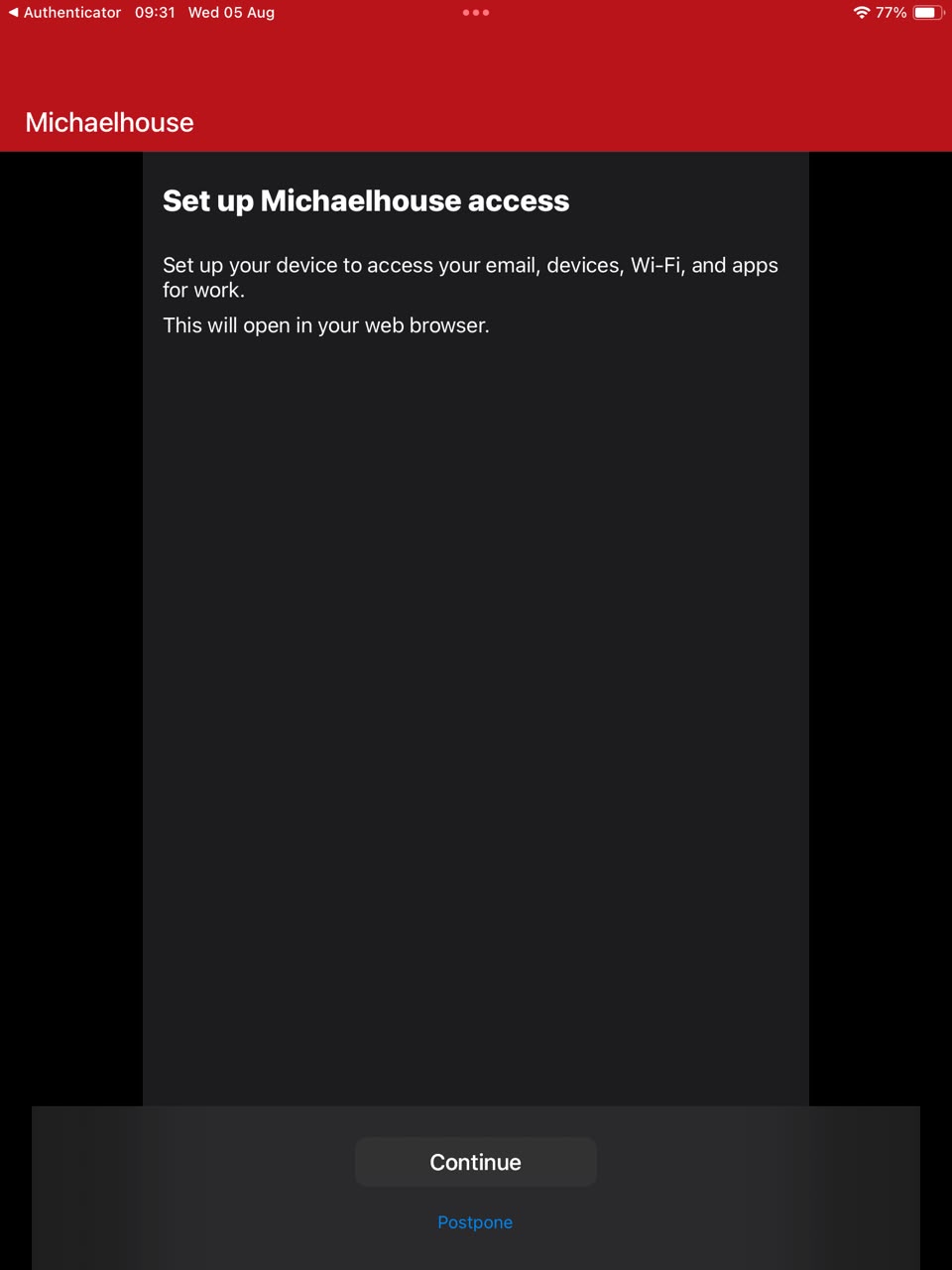
- 9Safari asks what type of device you're using — tap
iPad or iPhone, whichever you are setting up.
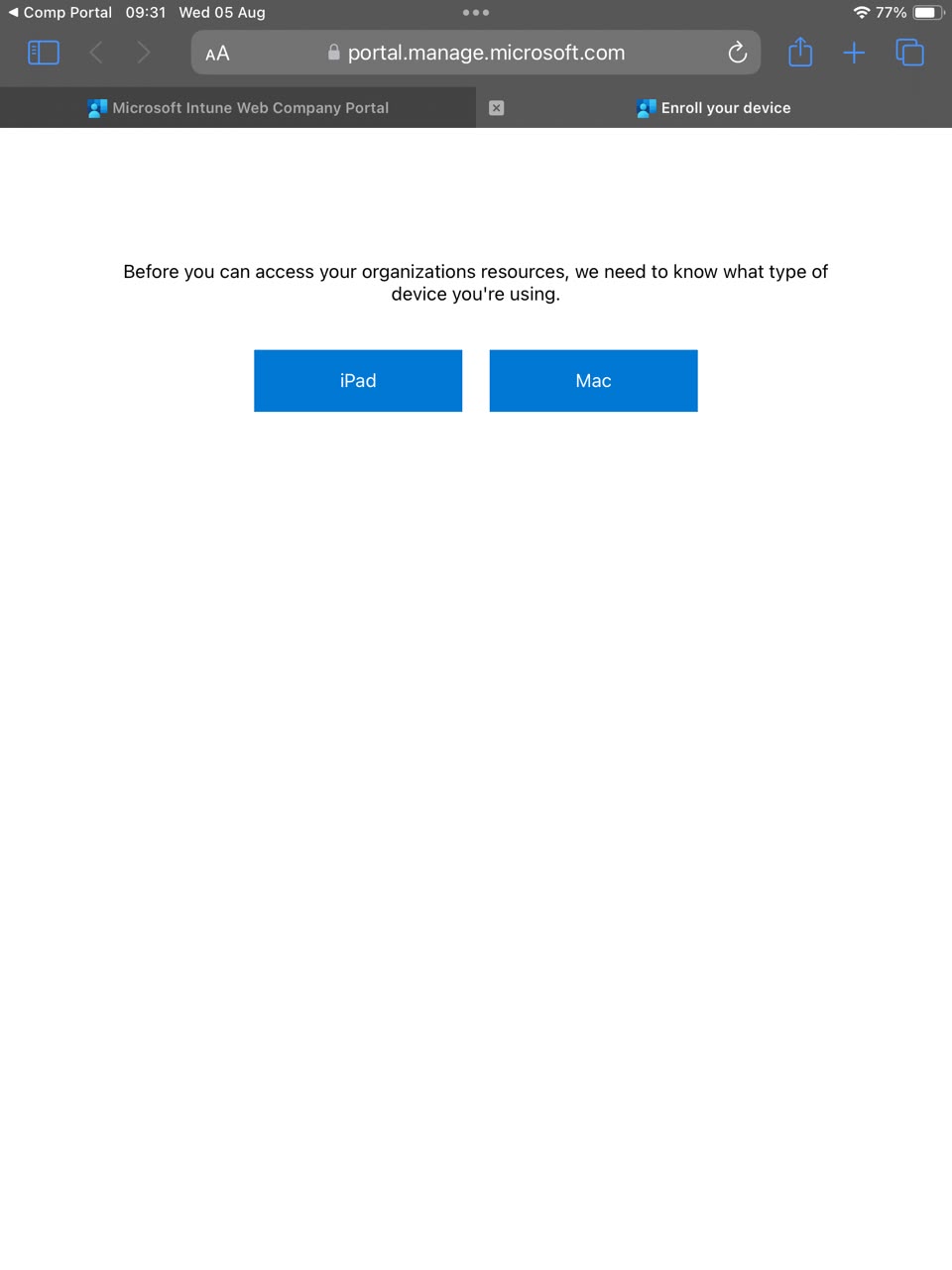
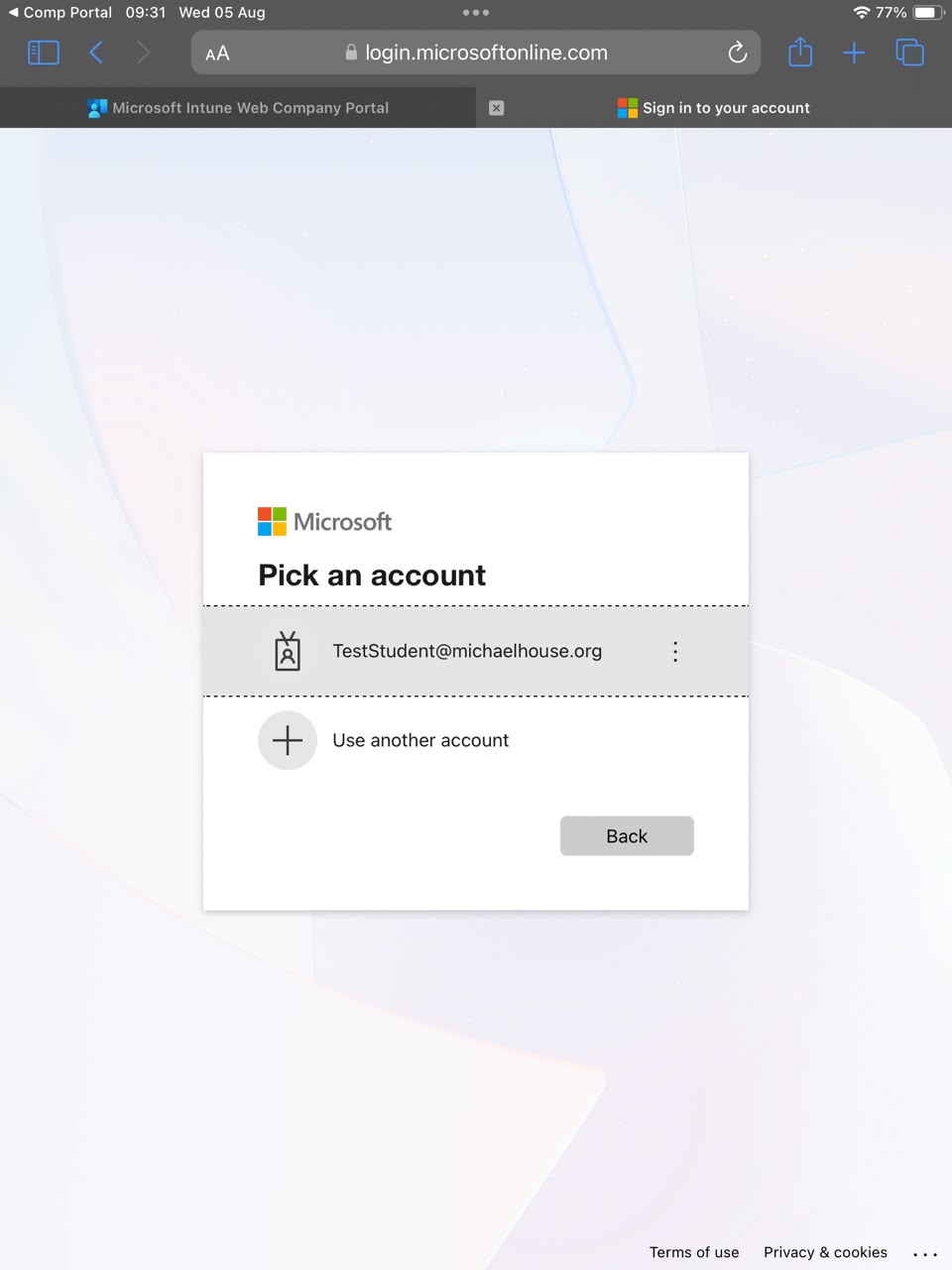
- 10Choose your Michaelhouse account and sign in again.
This second sign-in is normal.
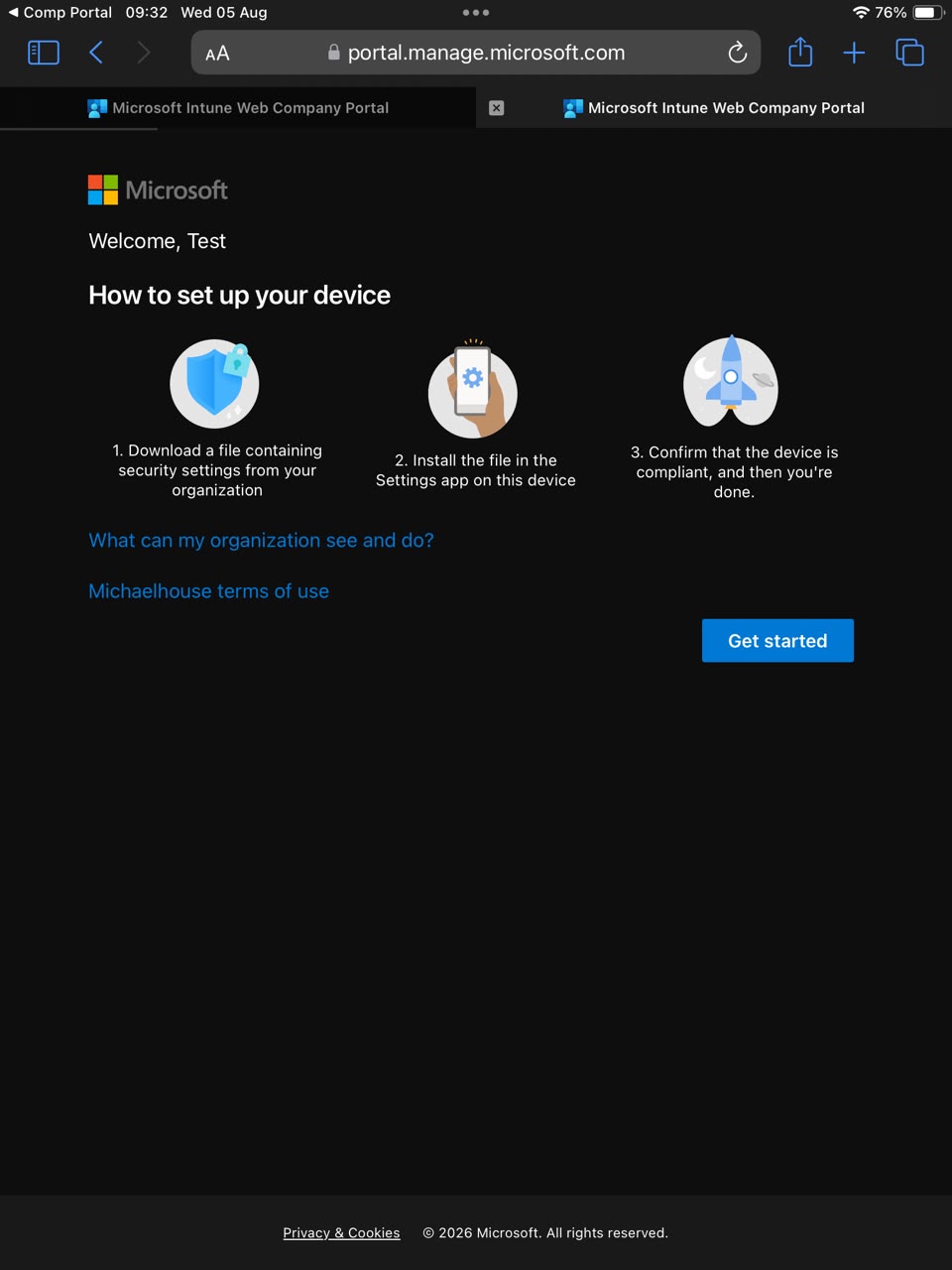
- 11Tap Get started and continue through the information
screens. (You will not be asked who owns the device — the school's setup skips that
question. If a future update ever does ask: I own this device →
Secure entire device.)
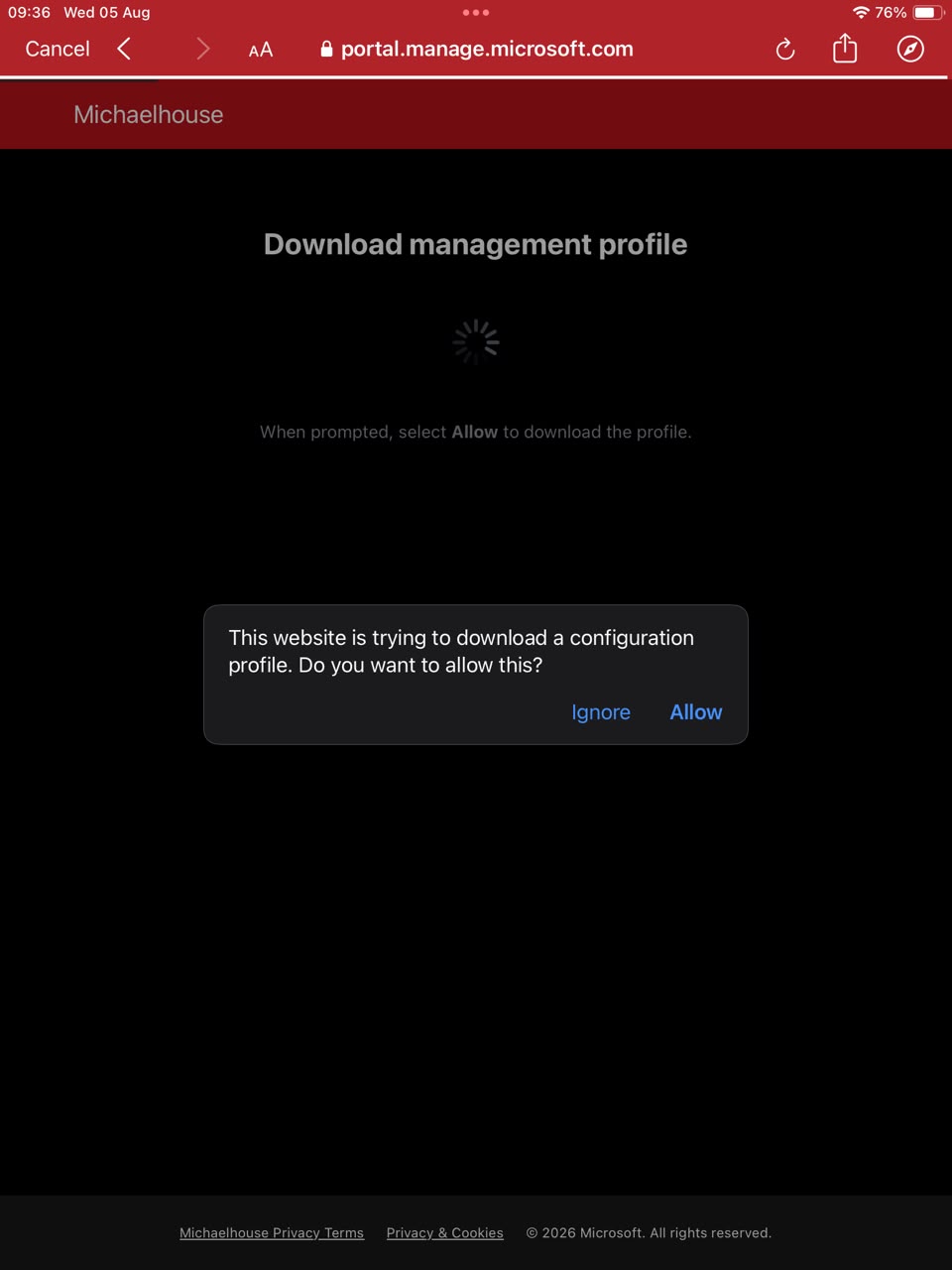
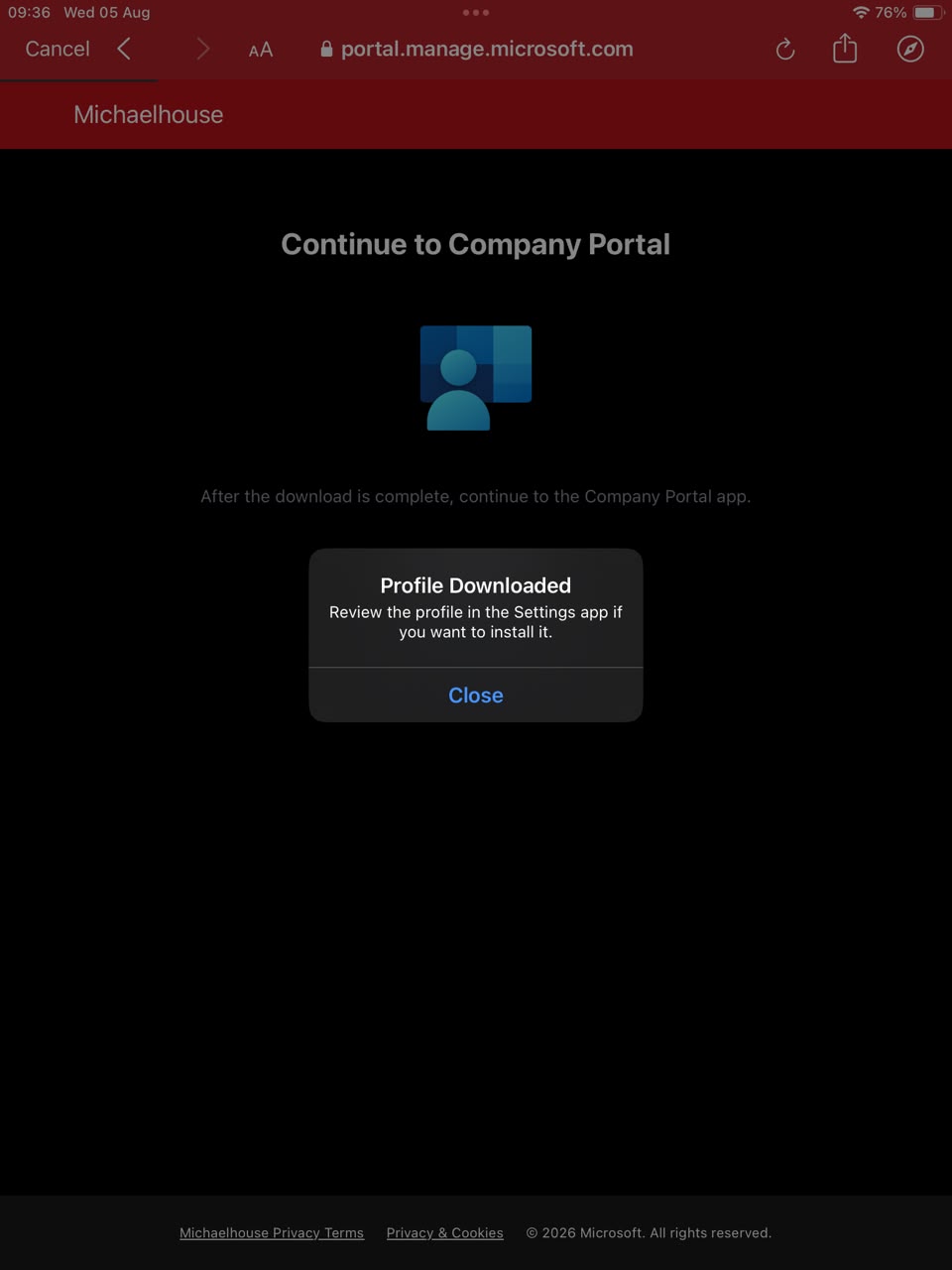
- 12The configuration profile downloads. If nothing happens,
tap Download it again. Tap Allow, then Close.
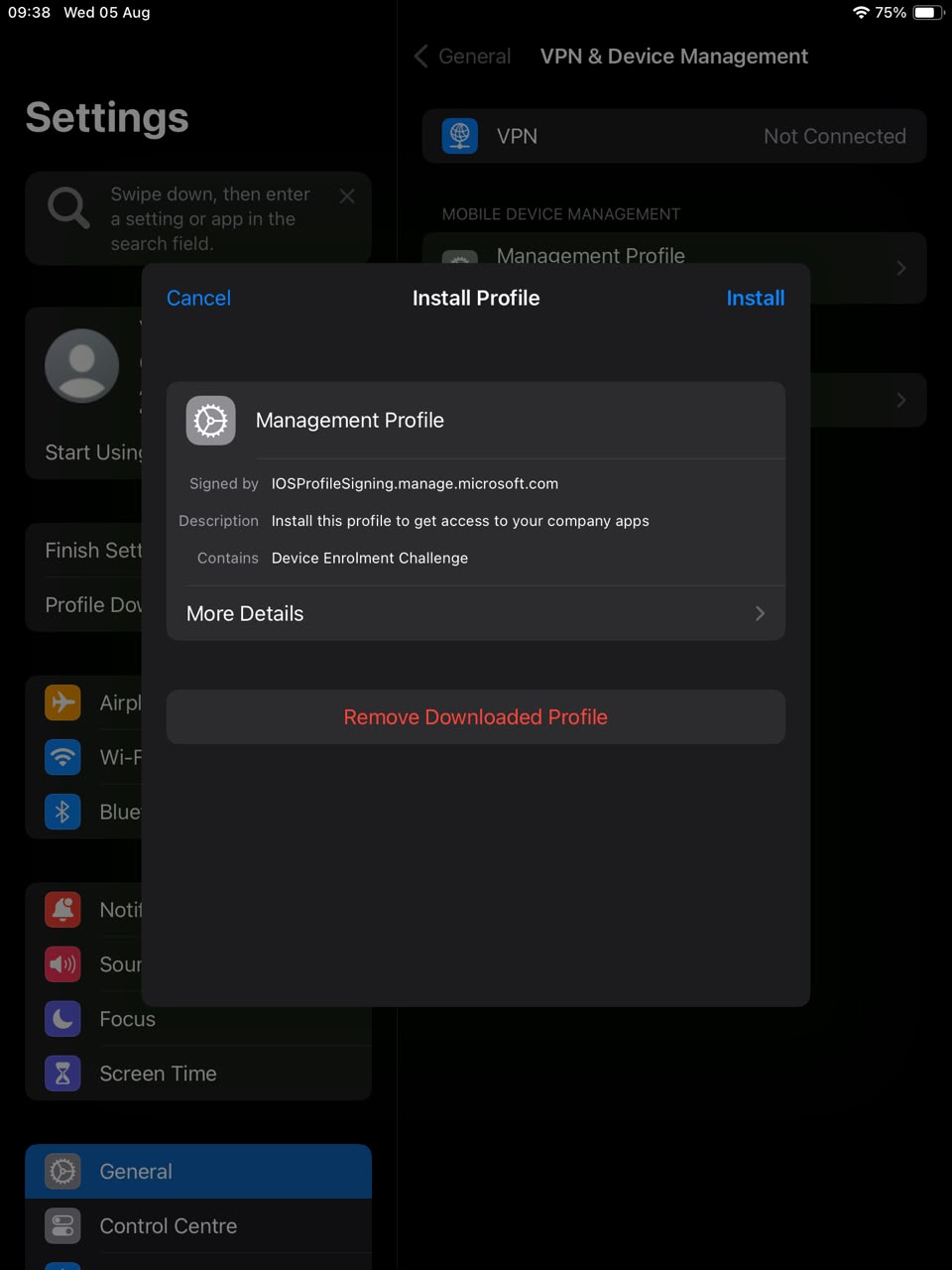
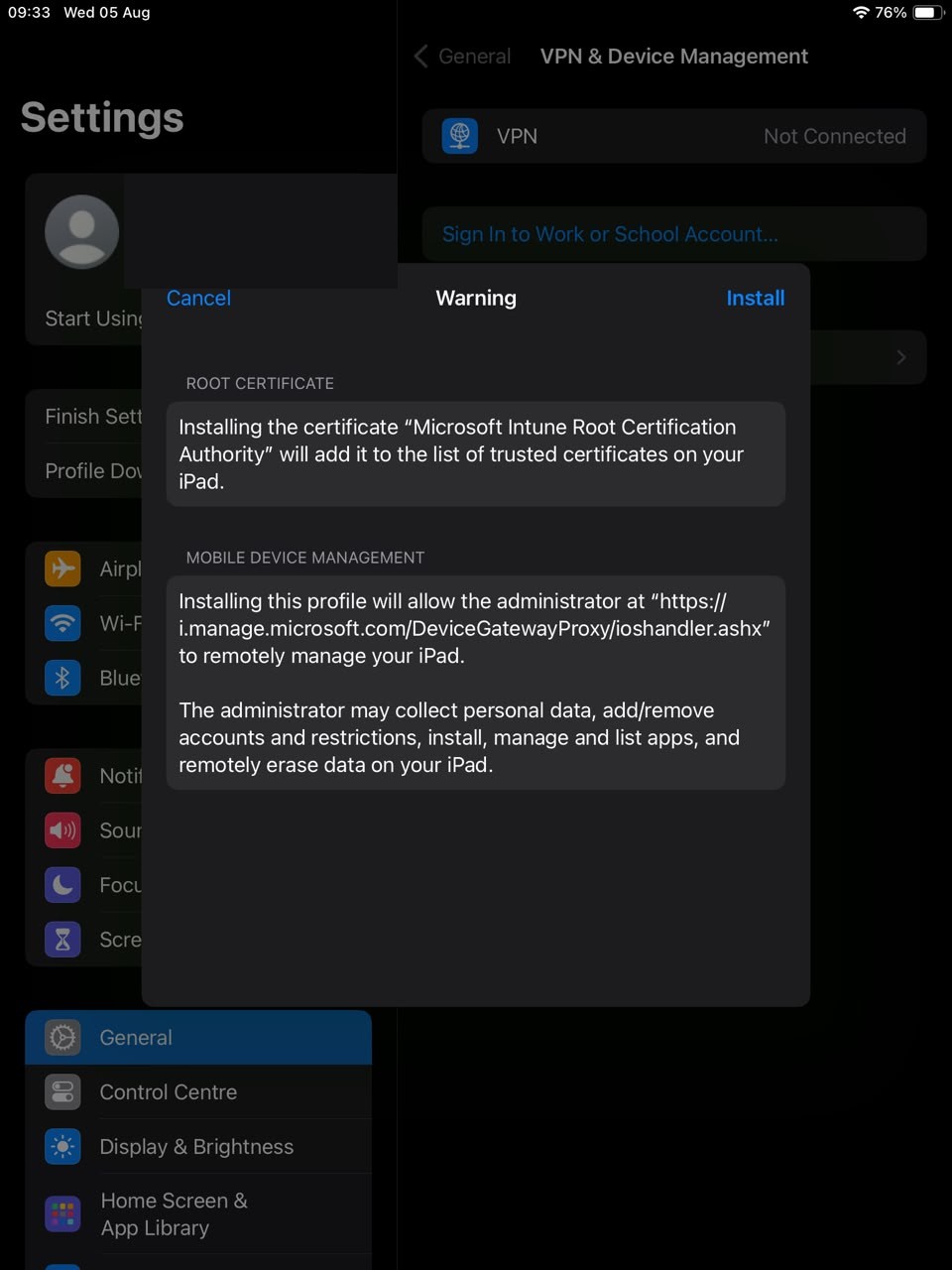
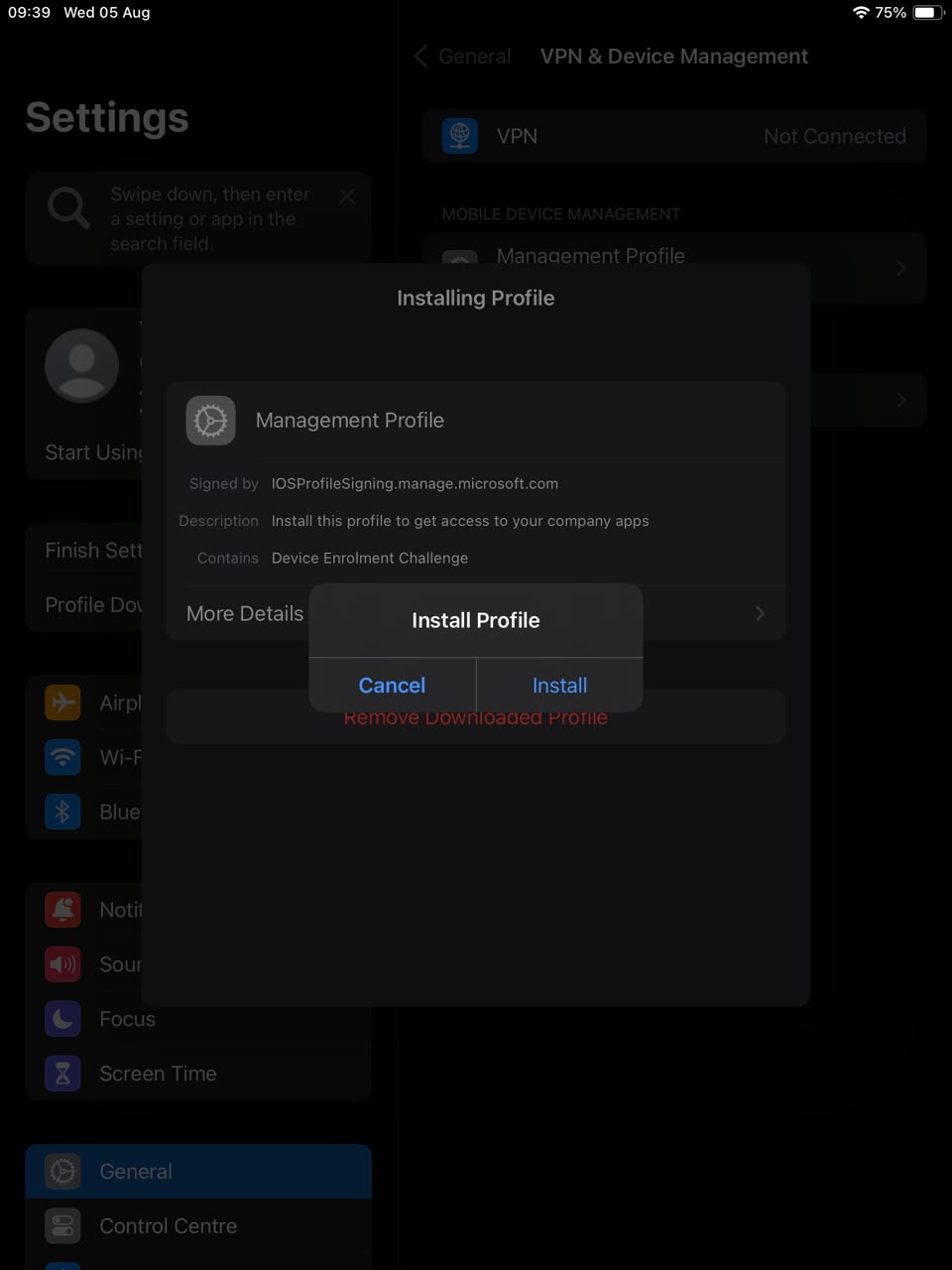
- 13Open Settings → tap Profile Downloaded near the top
(can't see it? Settings → General → VPN & Device Management). Tap
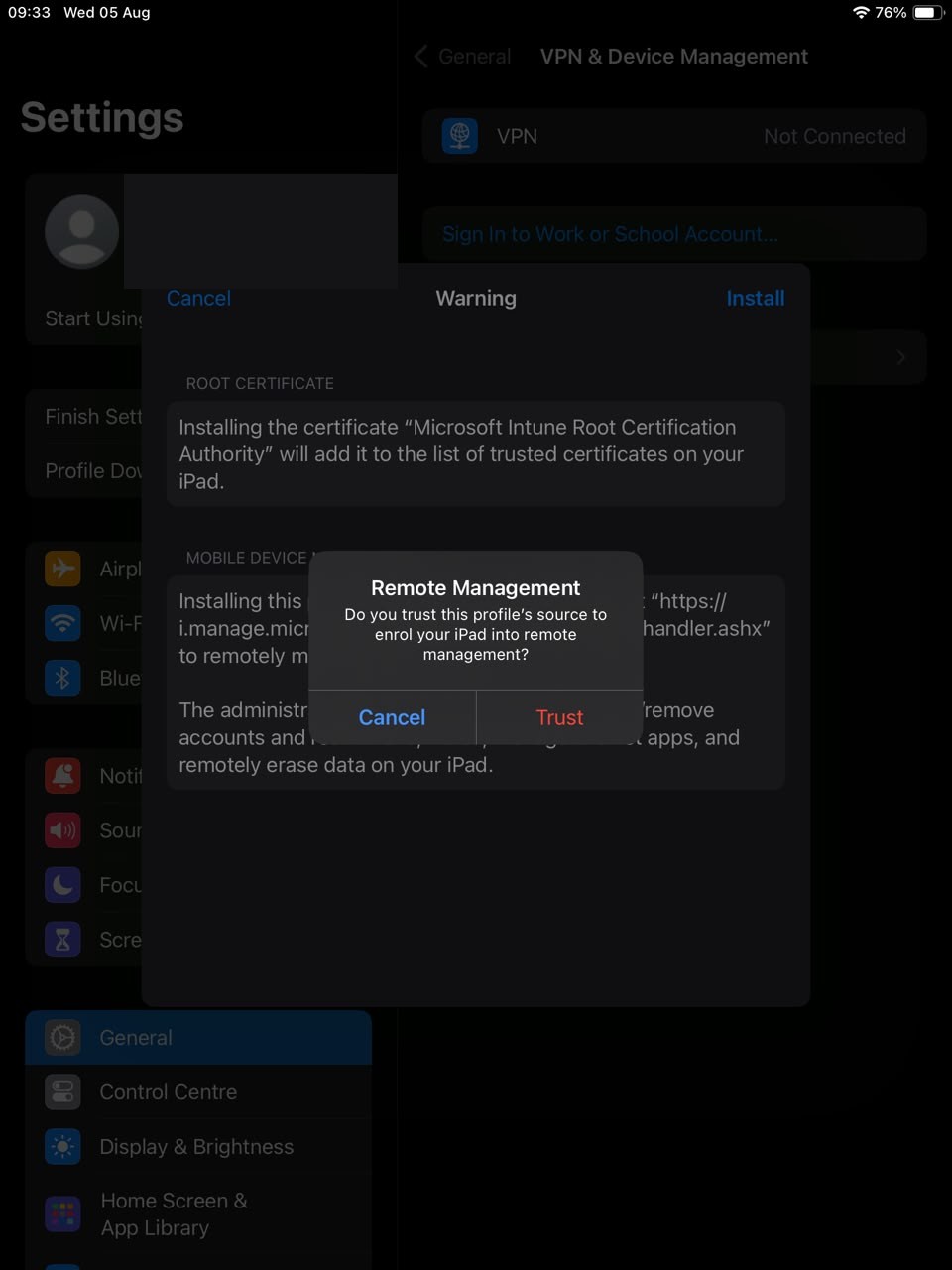
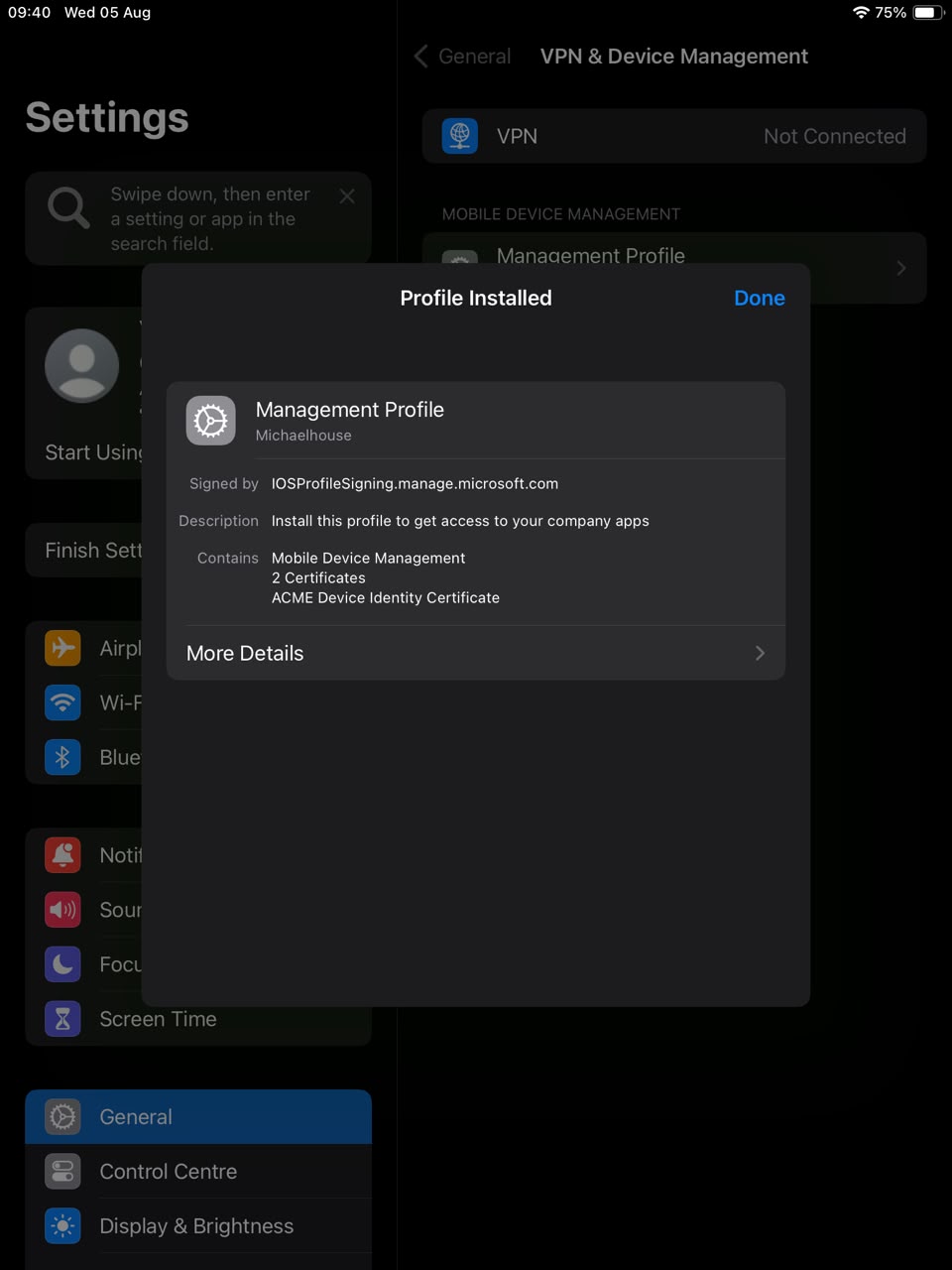
Management Profile → Install, enter your passcode,
Install again, then Trust, then Done.
⚠ Steps 14–19 — Company Portal asks you to set everything up again
This is normal and happens to everyone — including installing the profile a second time. Do this:
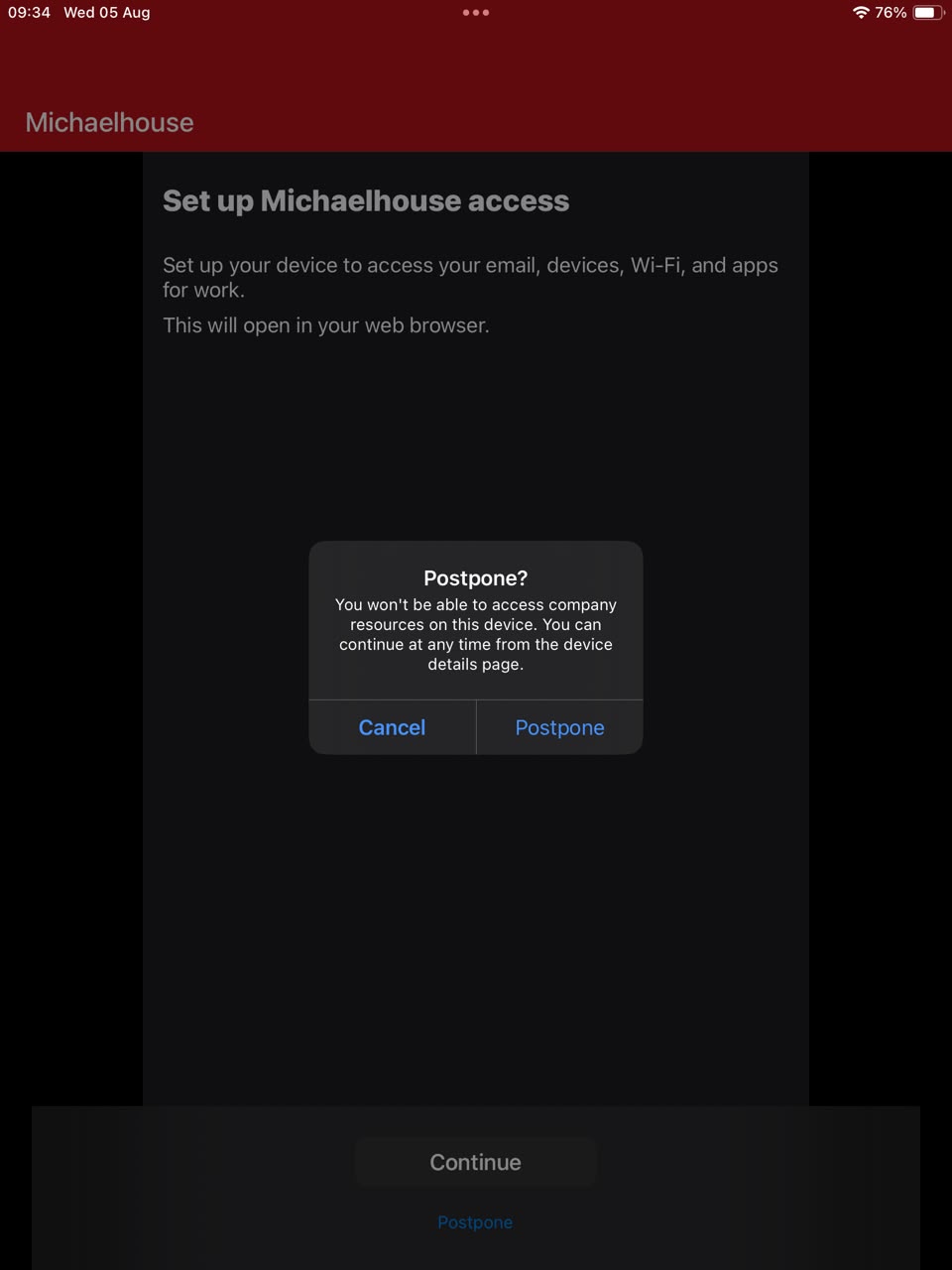
- 14Open Company Portal. On the "Set up Michaelhouse access"
screen tap Postpone. A message asks "Postpone?" — tap
Postpone again.
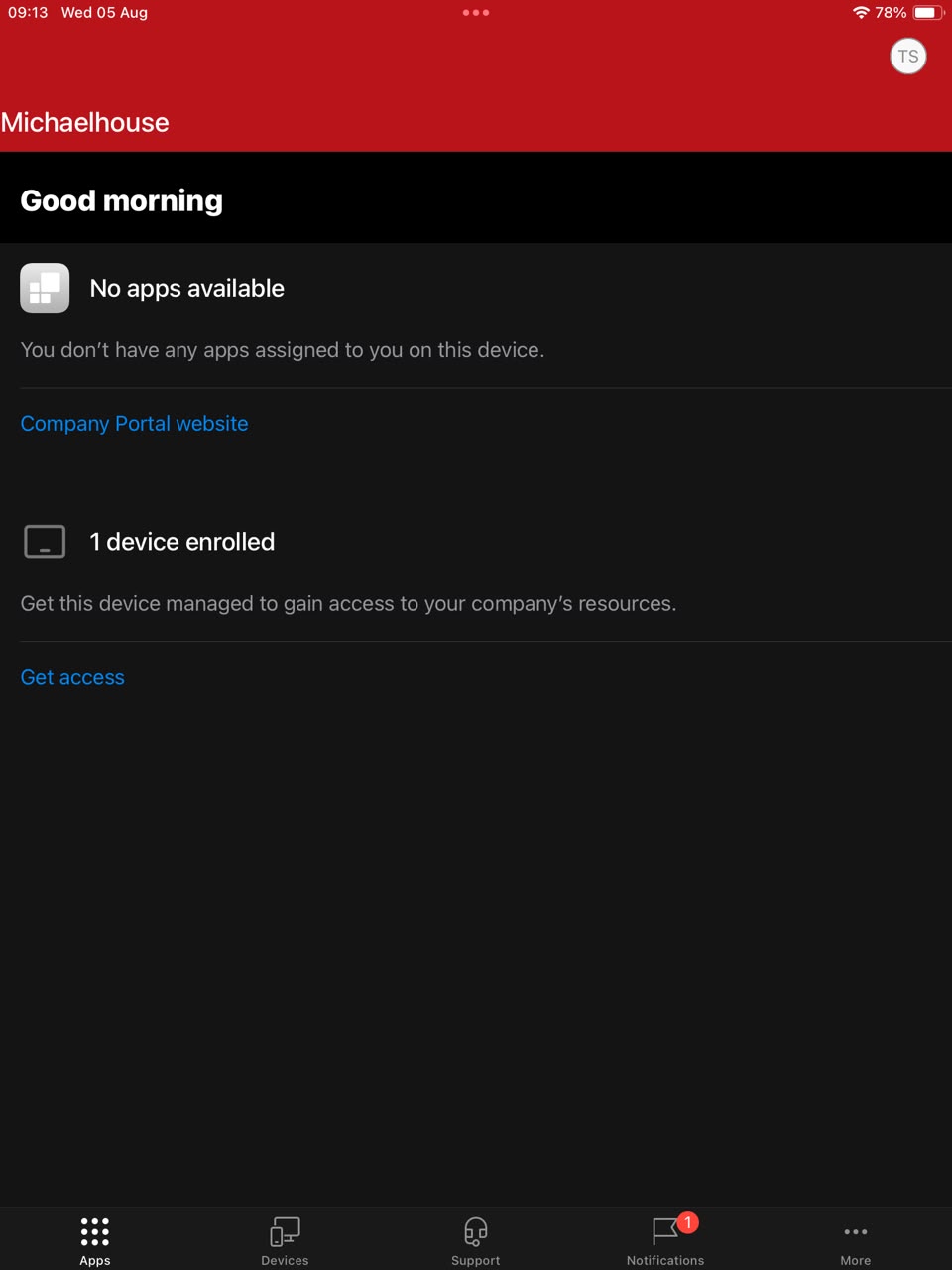
- 15Tap Get access.
- 16Tap Begin, then Continue through the
privacy screens.
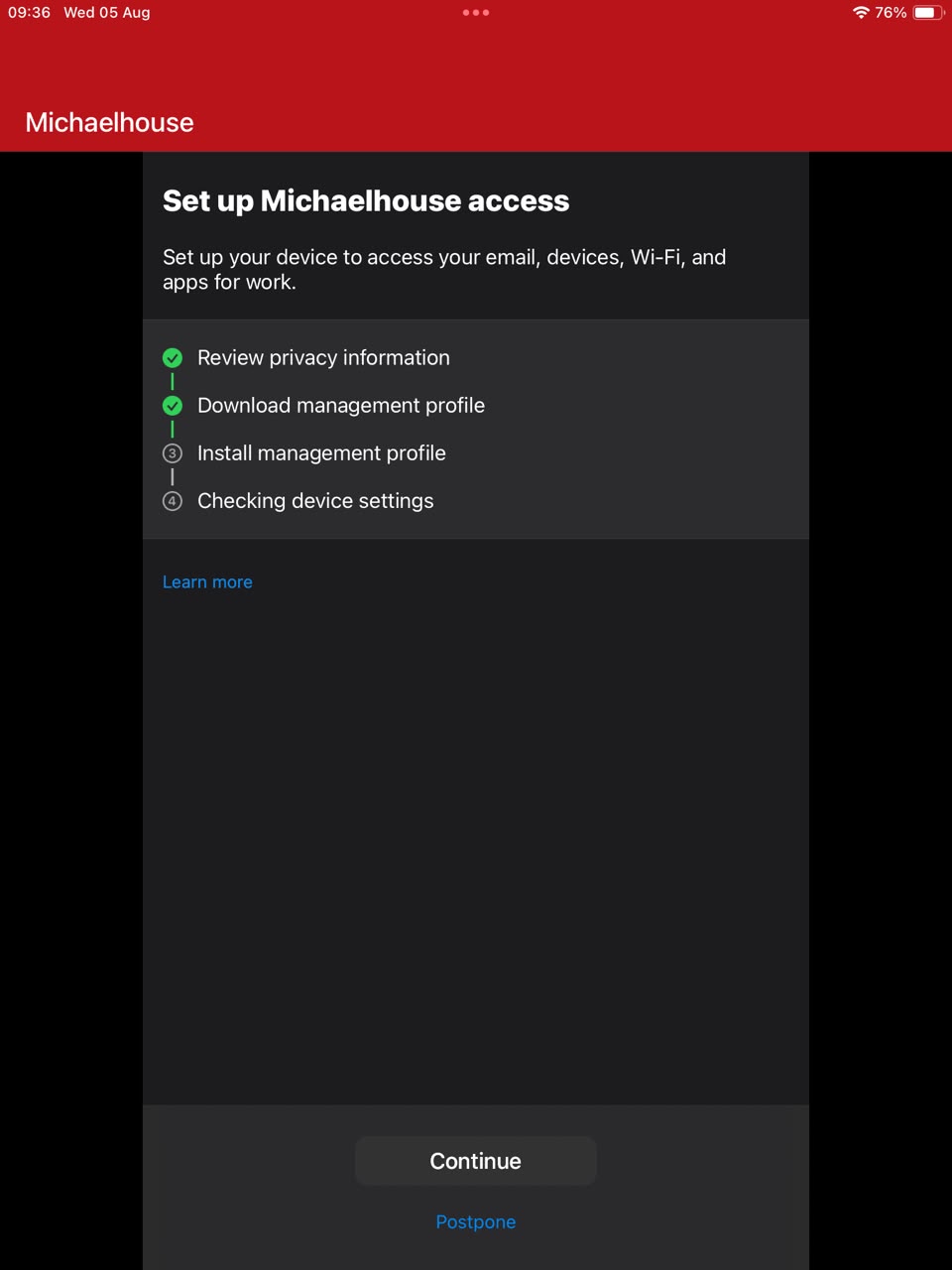
- 17Company Portal downloads the profile again: tap Allow (if the download fails, try again), then Close, then Continue.
- 18Go back to Settings and install the profile a
second time: Management Profile → Install → Install.
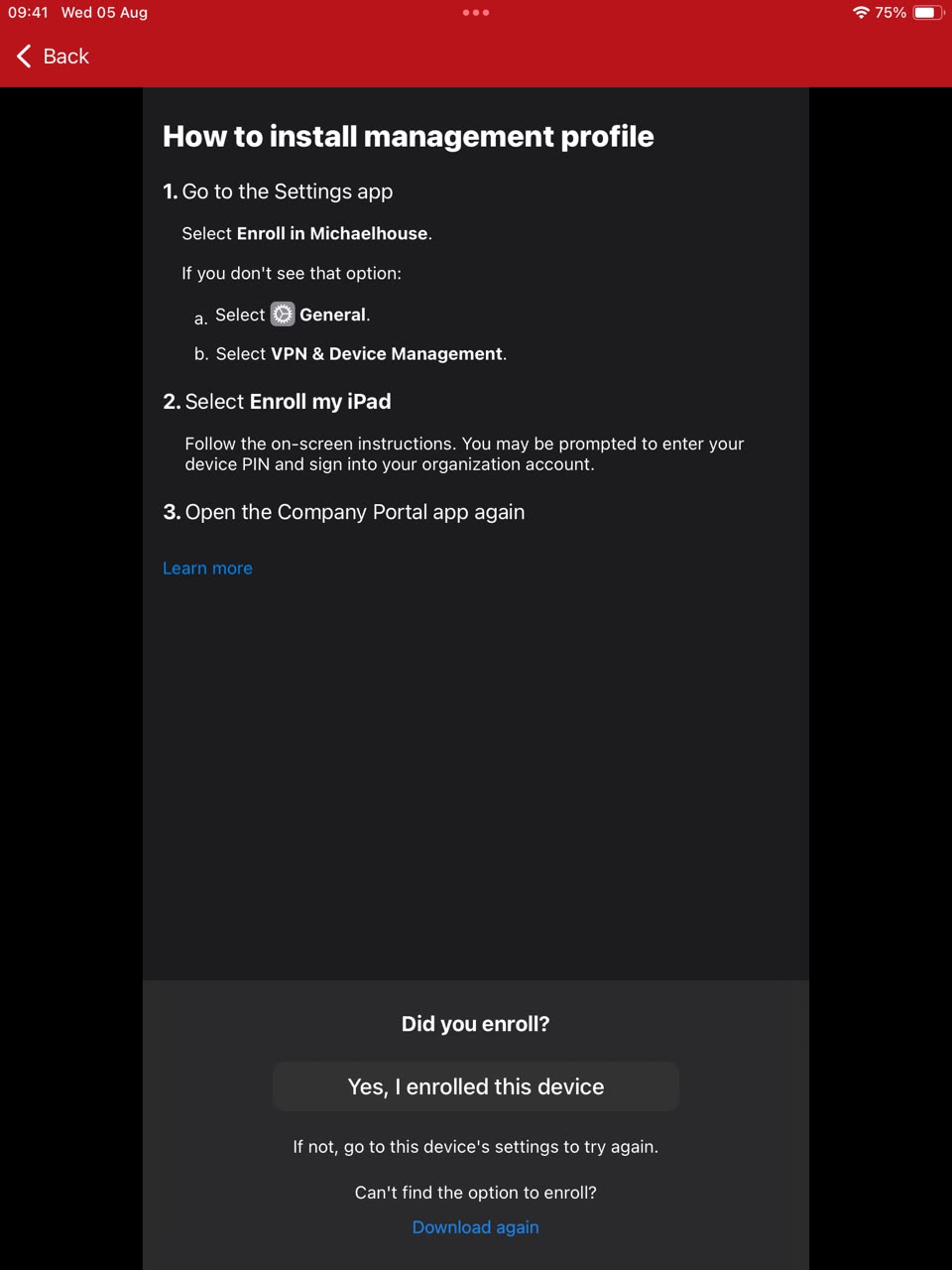
- 19Return to Company Portal. On the "Did you enroll?"
screen, tap Yes, I enrolled this device.
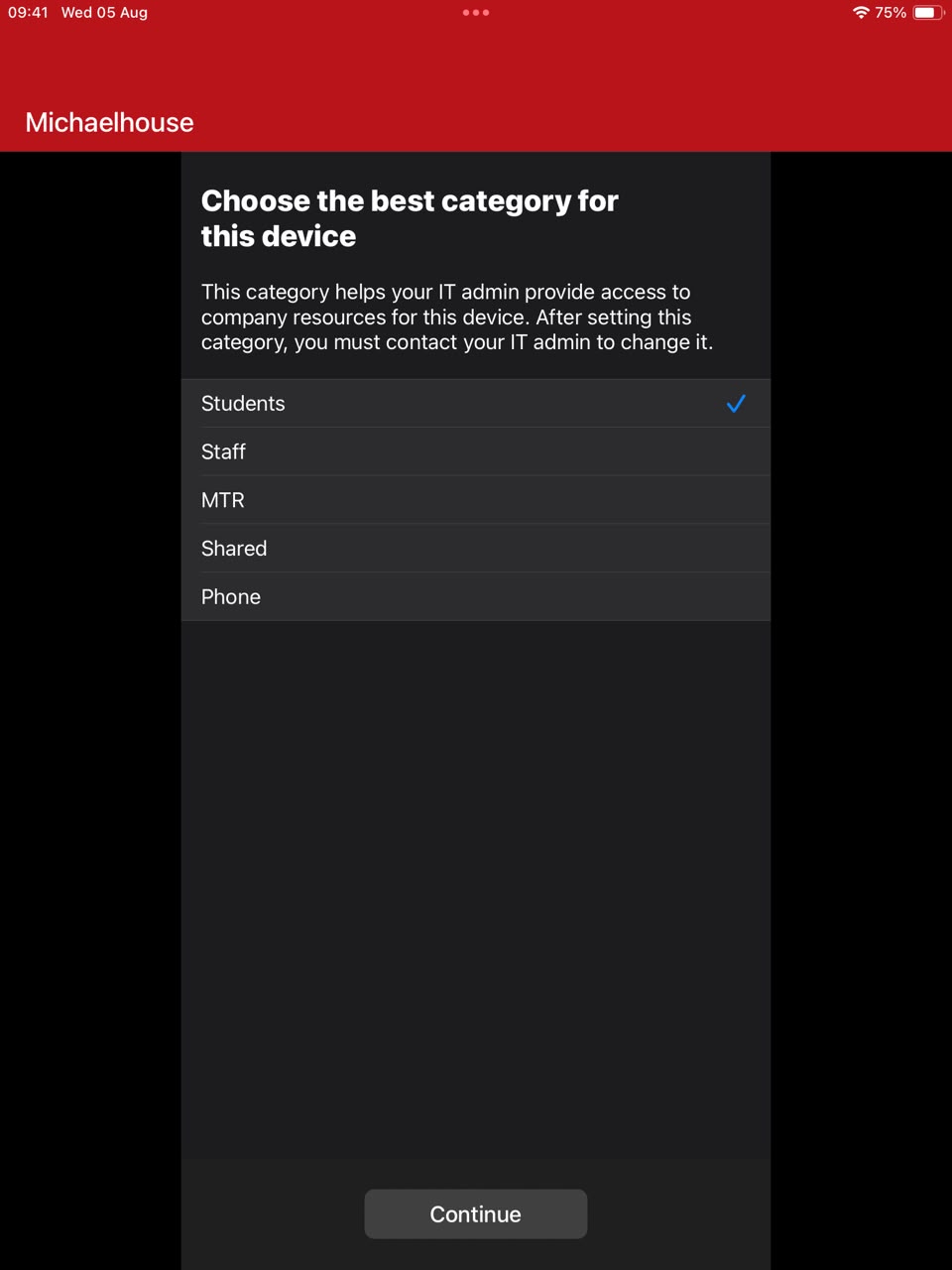
Step 20 — choose your category honestly
Pupils choose Students. Staff choose Staff. This one choice decides which school settings your device is given.
Device categories are audited and corrected every day, so choosing the wrong one gains you nothing — it will be put back automatically. Deliberately selecting a category that is not yours is a disciplinary matter.
- 20Company Portal registers your device, then asks you to choose the
best category for this device. Pupils choose Students; staff choose
Staff. Tap Continue. Choose honestly — see the box above.
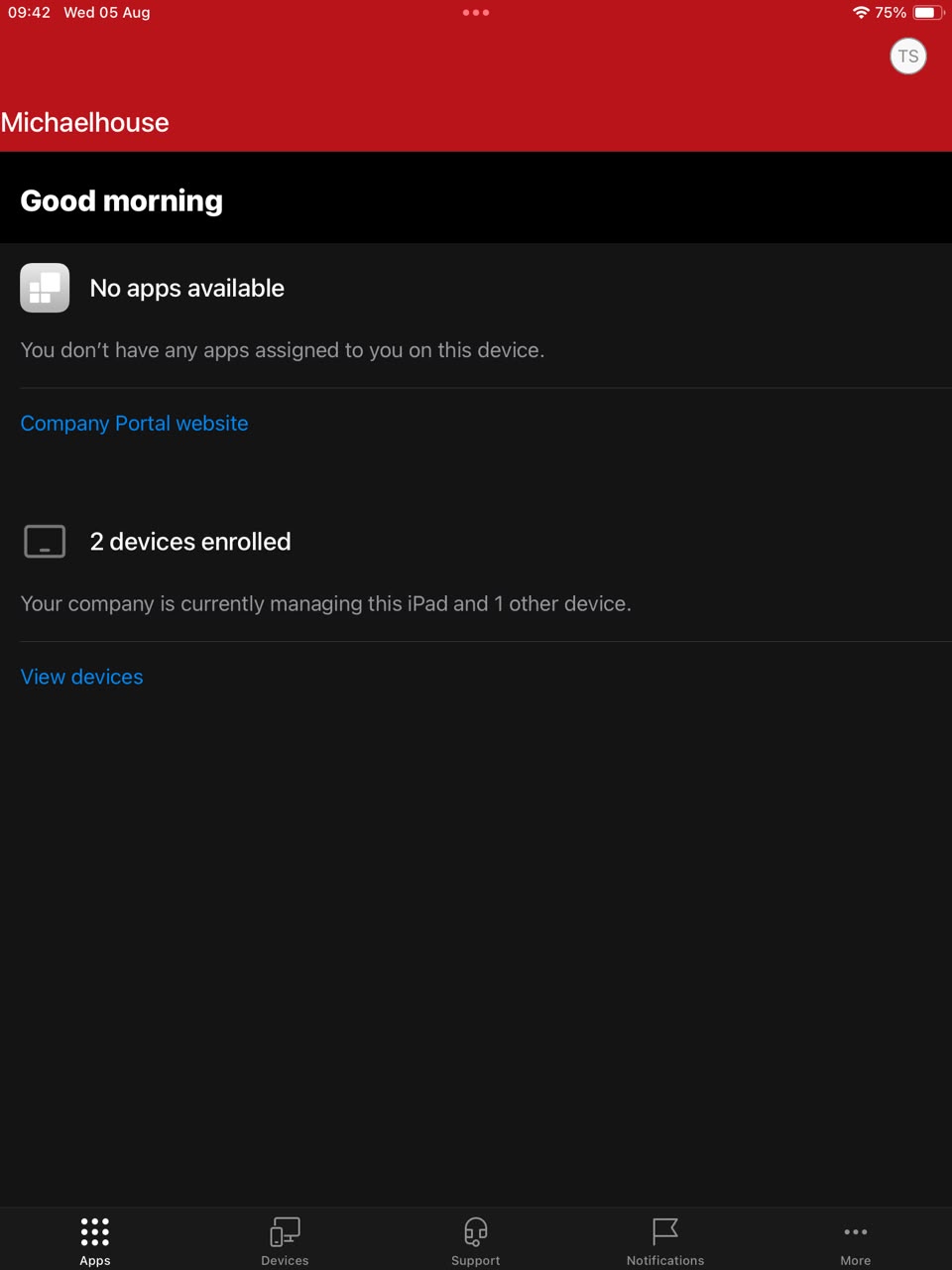
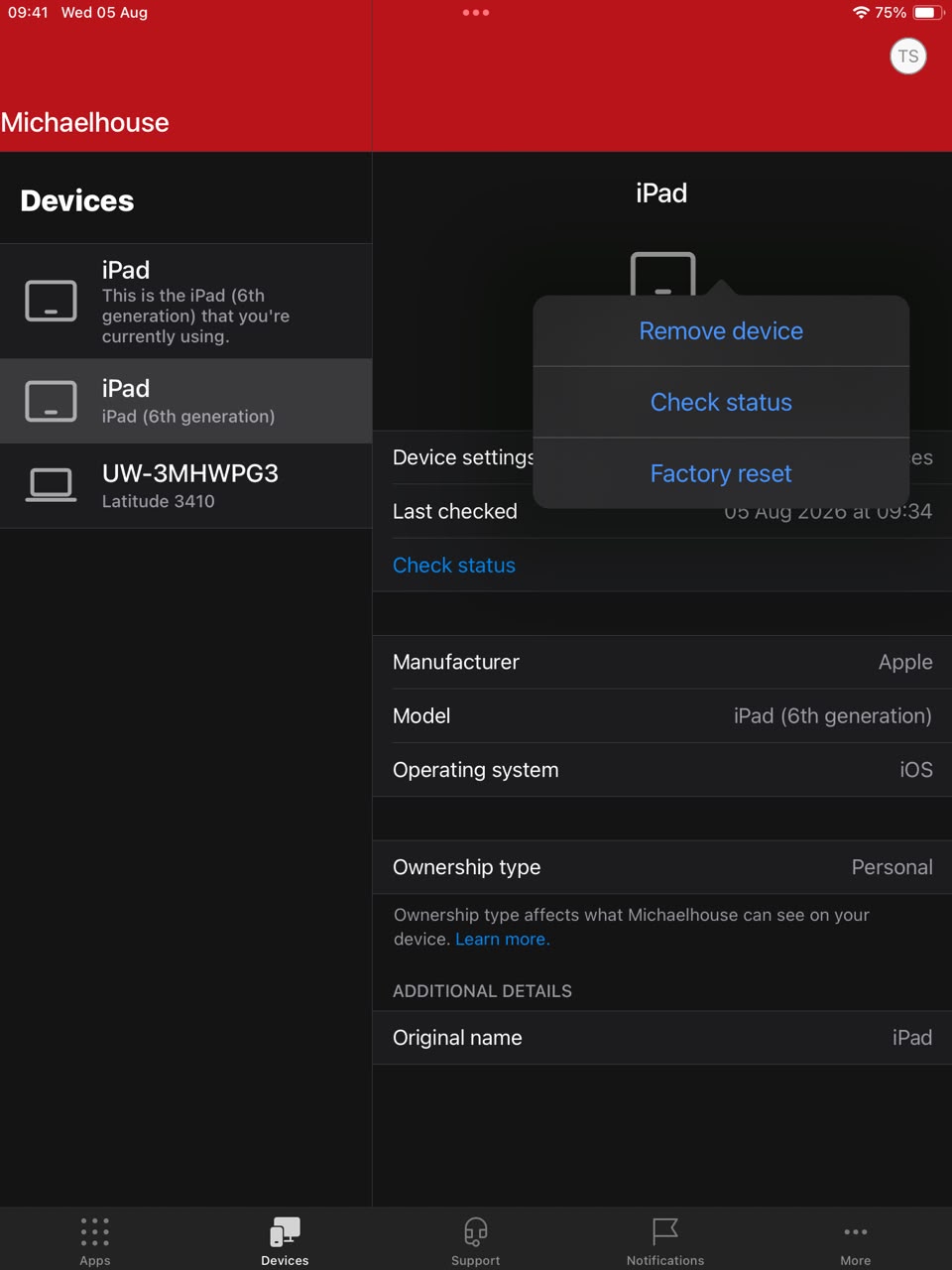
- 21Remove the duplicate device entry. Installing the profile
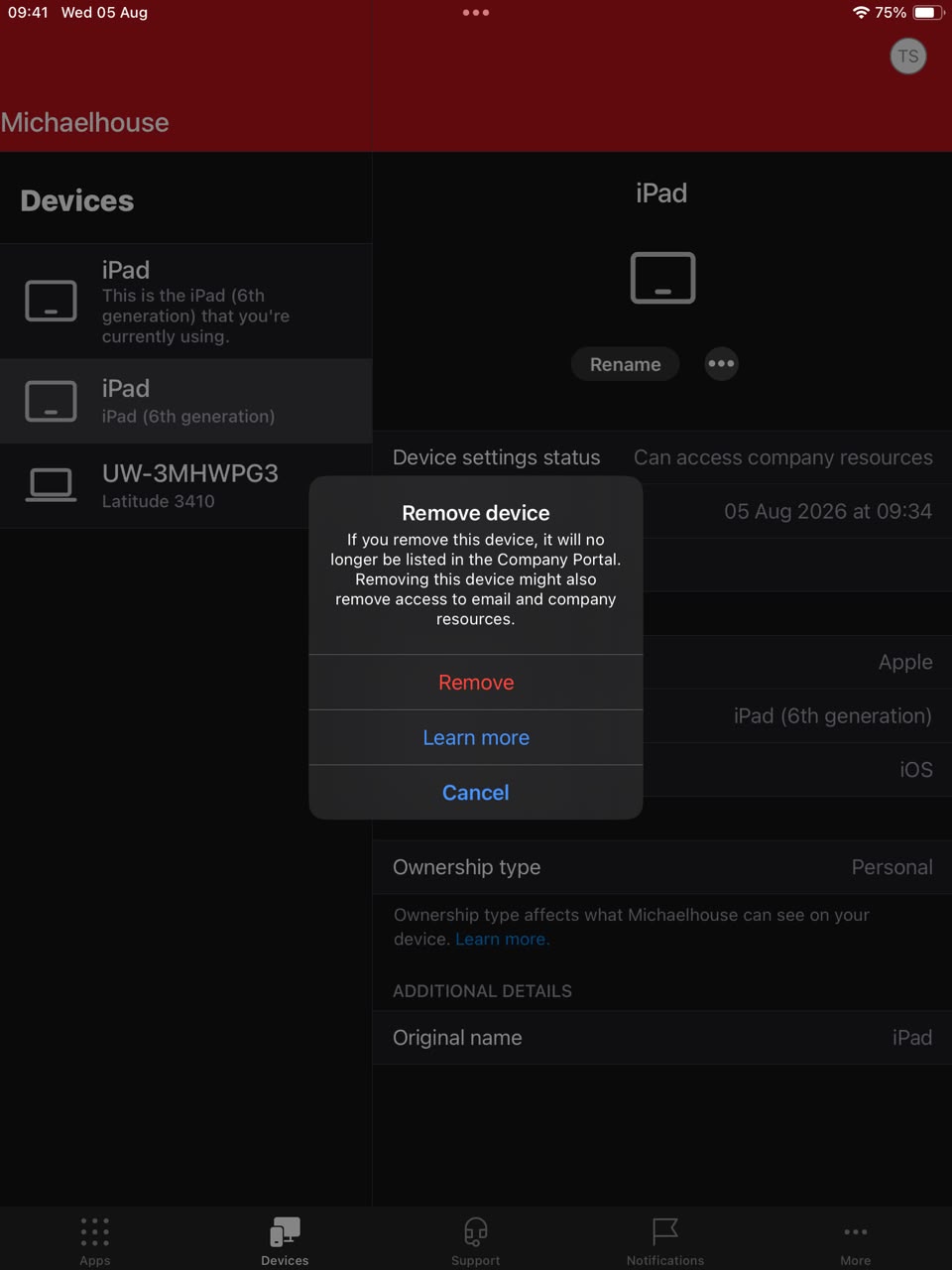
twice leaves two copies of your device listed. Go to the Devices tab, tap the
entry that does not say "This is the iPad that you're currently using"
(on an iPhone it says "the iPhone that you're currently using"), tap
⋯ → Remove device → Remove.
⚠ Never remove the one marked "currently using" — that un-enrols your device and you
start over. Not sure which is which? Stop and ask IT.
Part D
Move onto MHS-SECURE
- 22Stay on Wi-Fi and wait up to 15 minutes. Your certificate and the MHS-SECURE settings arrive on their own — there is nothing to type and no password.
- 23Go to Settings → Wi-Fi and tap MHS-SECURE.
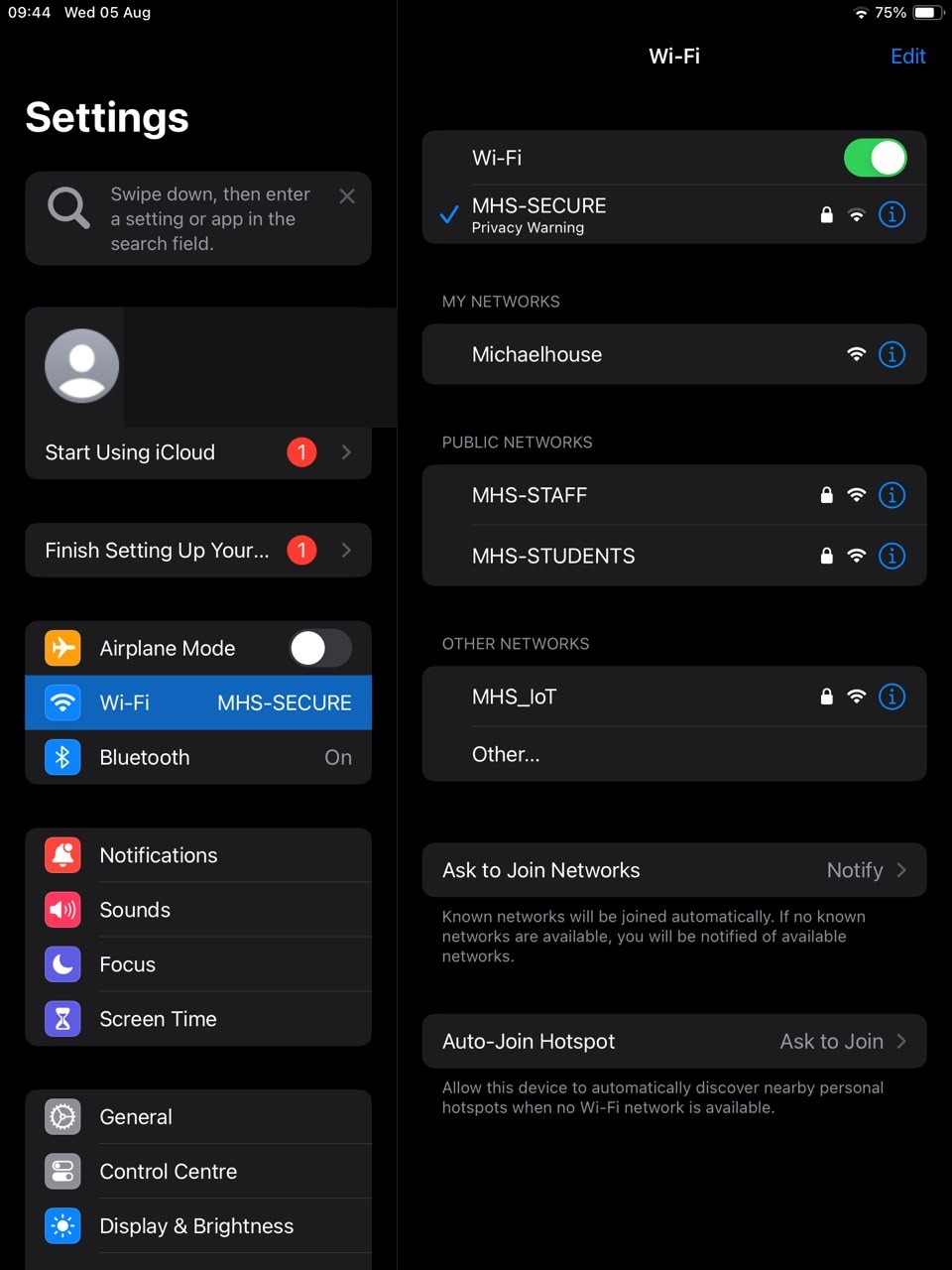
- 24Tap the ⓘ next to MHS-SECURE and check Private Wi-Fi Address is OFF. (The Wi-Fi list may show "Privacy Warning" under MHS-SECURE — that is expected and not a problem. It appears because the school's settings turn the private address off for you.)
- 25Check that the internet works.
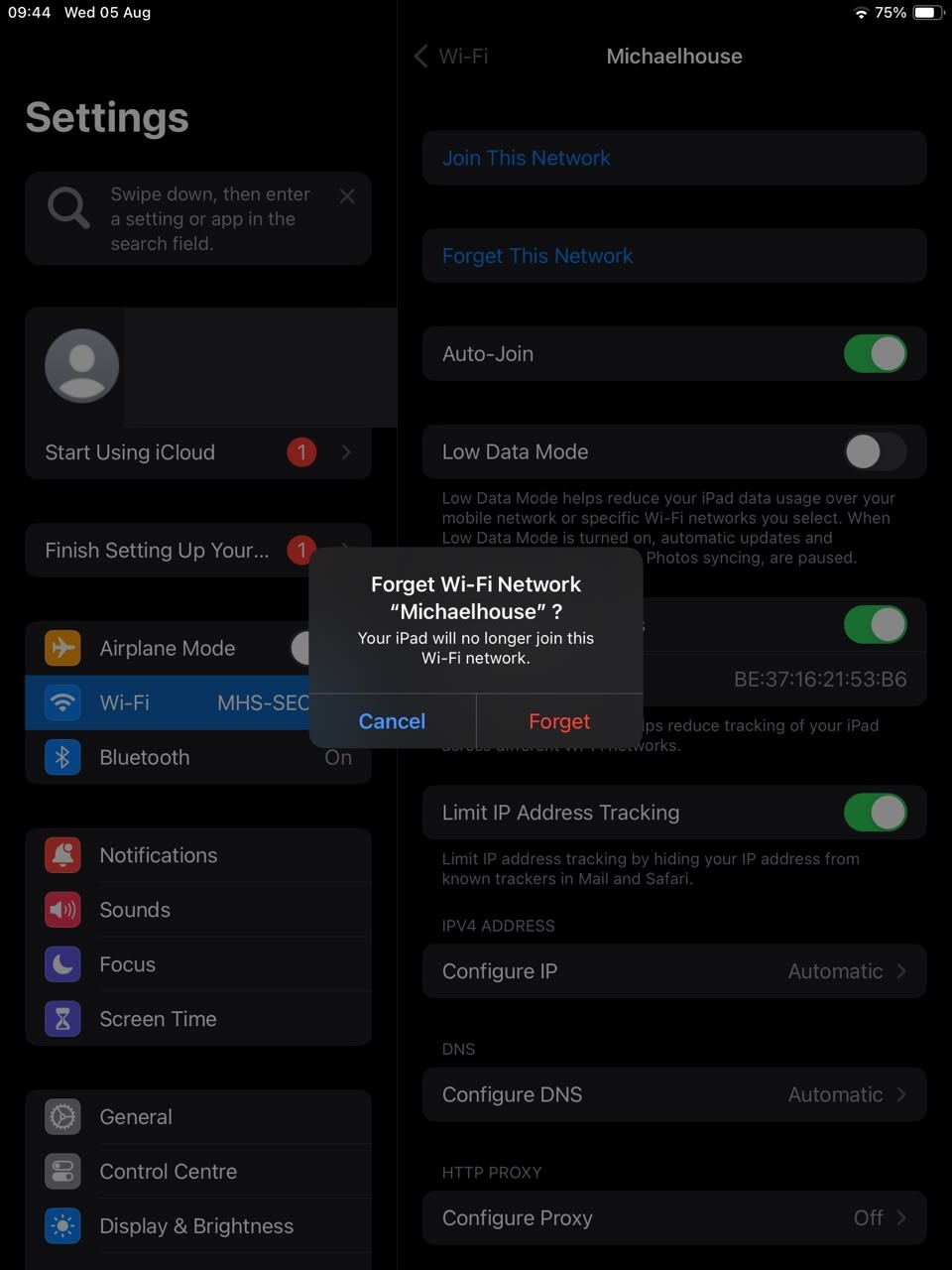
- 26Forget the onboarding network: Settings → Wi-Fi → ⓘ
next to Michaelhouse → Forget This Network. If you skip this, your device
keeps drifting back to the limited network.
If something goes wrong
No sign-in page when joining Michaelhouse
Expected — there isn't one. Carry on to the App Store.
Can't sign into your Apple ID
Apple's sign-in takes a few minutes and several taps. Wait and retry; if it keeps failing, tell IT — don't keep retrying for long.
App Store won't load
Usually the Apple ID isn't signed in yet. Finish that first.
Asked to sign in twice
Expected — once in the app, once in Safari. Same school account both times.
Company Portal asks you to set up again after installing
Normal — it happens to everyone. Steps 14–21 walk you through the second pass.
Profile "did not load"
Check VPN & Device Management first. Only re-download if no Management Profile is listed.
Two iPads (or iPhones) listed in Devices
Expected — the second install registers it twice. Step 21 shows which one to remove. Unsure? Ask IT.
"Device not compliant"
Usually no passcode. Turn the passcode on, then Company Portal → Check settings. You have roughly a day before it is marked.
Email/Teams refuse to sign in, but Wi-Fi works
Device rules, not the network. Check the passcode first, then Check settings; if it persists, IT.
MHS-SECURE never appears after 15 minutes
Stay on Wi-Fi (not mobile data), then Company Portal → Check status. Still nothing after 30 minutes → IT.
MHS-SECURE appears but won't join
Private Wi-Fi Address is ON — turn it OFF (steps 3 / 24).
MHS-SECURE says "Privacy Warning"
Expected — the school's settings turn the private address off deliberately. Nothing to fix.
Everything closed itself half-way
Left idle too long. Reopen Company Portal and start Part C again.
iPad or iPhone keeps going back to Michaelhouse
You didn't forget the network — step 26.
Getting help: tell IT which step number you reached and exactly what appeared on screen. That is the fastest route to a fix.